Introduction to ClickLens
ClickLens is a modern, powerful, and user-friendly web interface for managing and monitoring ClickHouse (opens in a new tab) databases. It provides a comprehensive suite of tools for developers, analysts, and administrators to interact with their ClickHouse clusters efficiently.
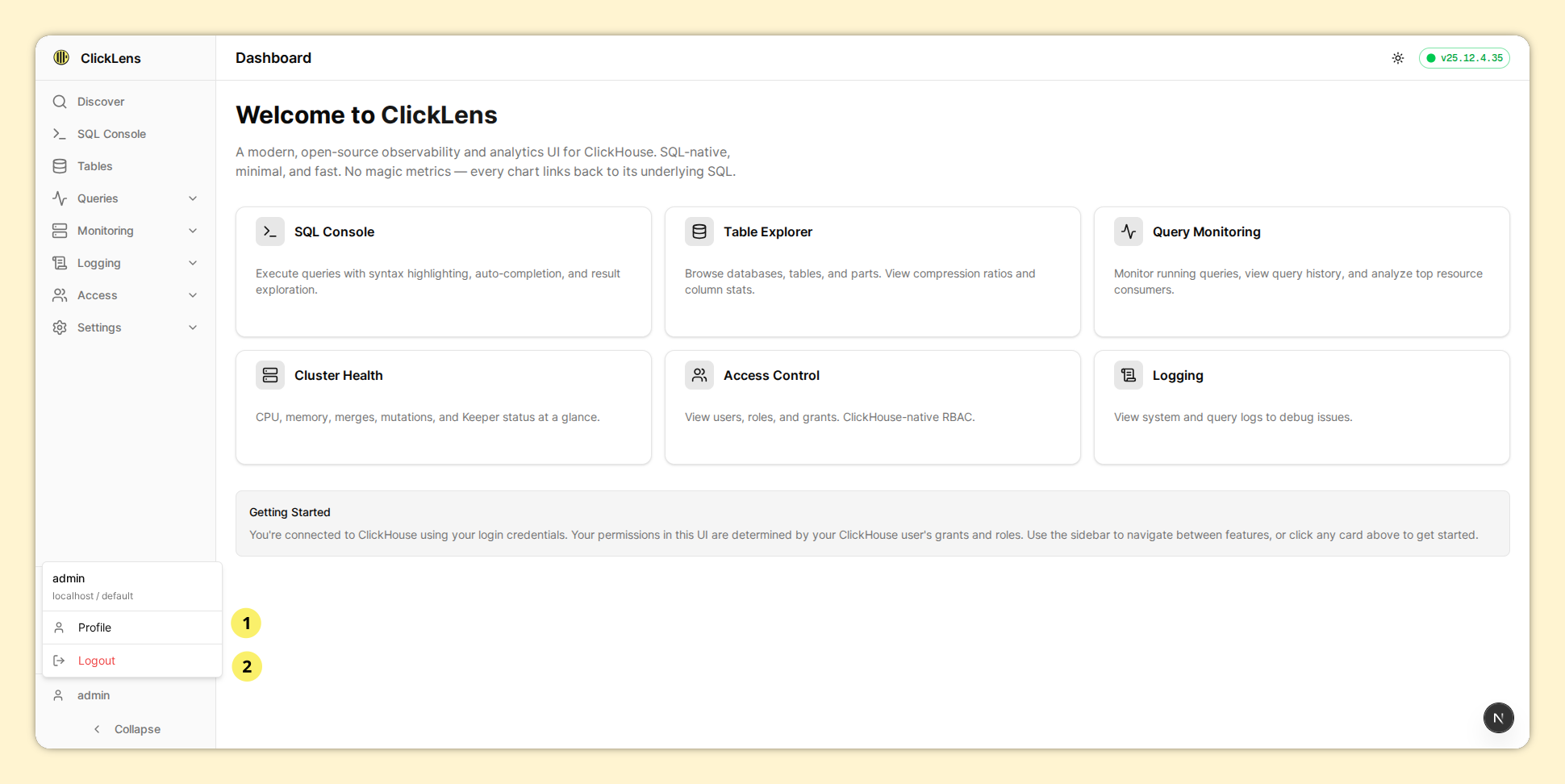
1. Why ClickLens?
ClickHouse is an incredible analytical database, but managing it via CLI or basic tools can be challenging. ClickLens bridges the gap by offering:
- Discover - Flexible, Kibana-like data exploration for any table
- SQL Console - Write, execute, and analyze queries with syntax highlighting and streaming results
- Real-time Monitoring - Keep an eye on your cluster's health, query performance, and resource usage
- Schema Explorer - Navigate databases, tables, columns, parts, and more
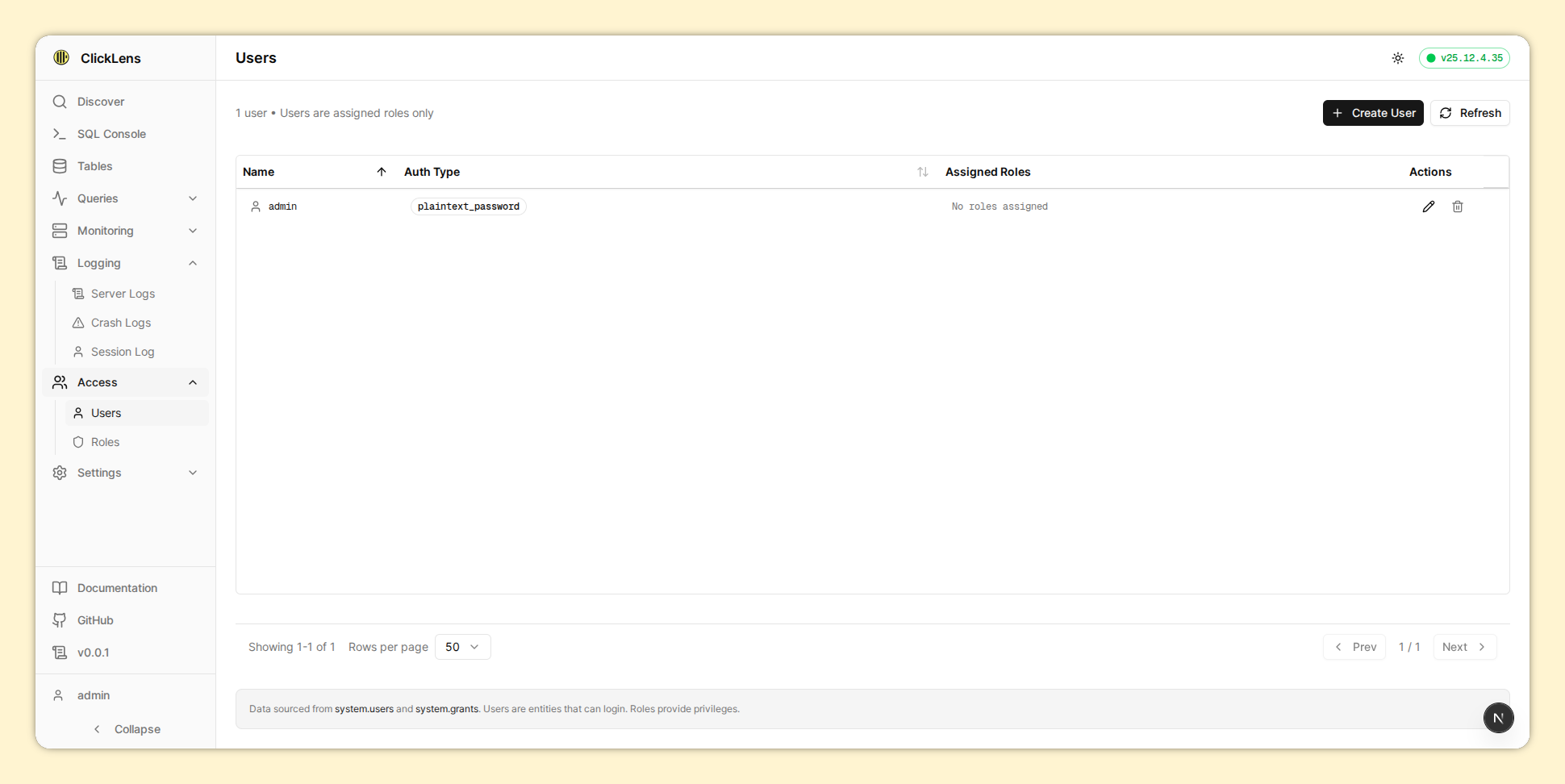
- Access Control - Manage users and roles directly from the UI
- Native RBAC - Your UI permissions are derived directly from your ClickHouse grants
- Multi-Cluster - Manage multiple ClickHouse clusters from a single UI
2. Key Features
| Feature | Description |
|---|---|
| Discover | Kibana-style exploration with time filtering, field selection, and histograms |
| SQL Console | Multi-tab editor with autocomplete, EXPLAIN, saved queries, and streaming |
| Table Explorer | Browse schemas with parts, merges, mutations, and DDL views |
| Monitoring | 8 dashboards for metrics, cluster, disks, Keeper, and replication |
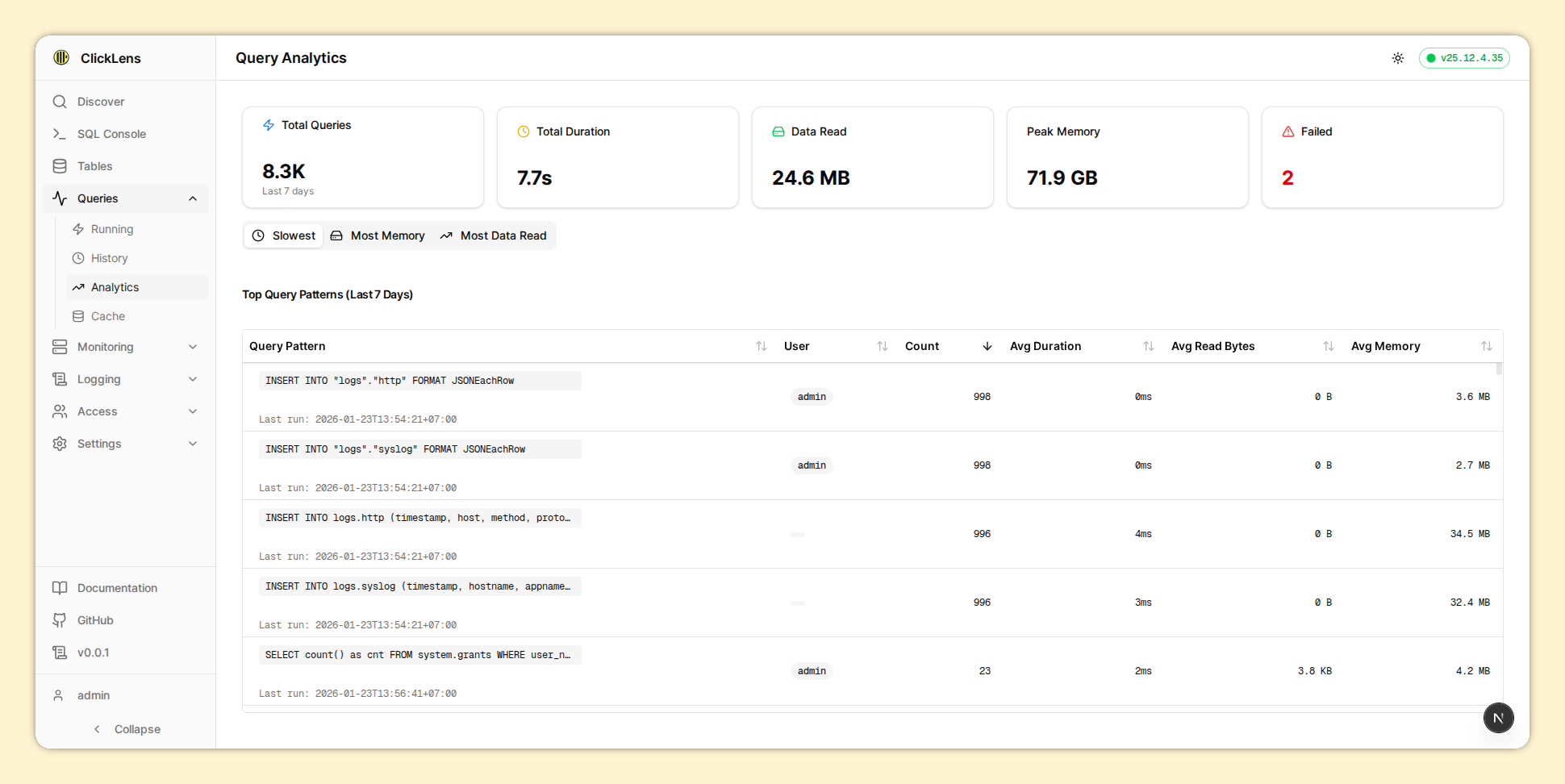
| Query Analytics | Running queries, history, performance analysis, and cache stats |
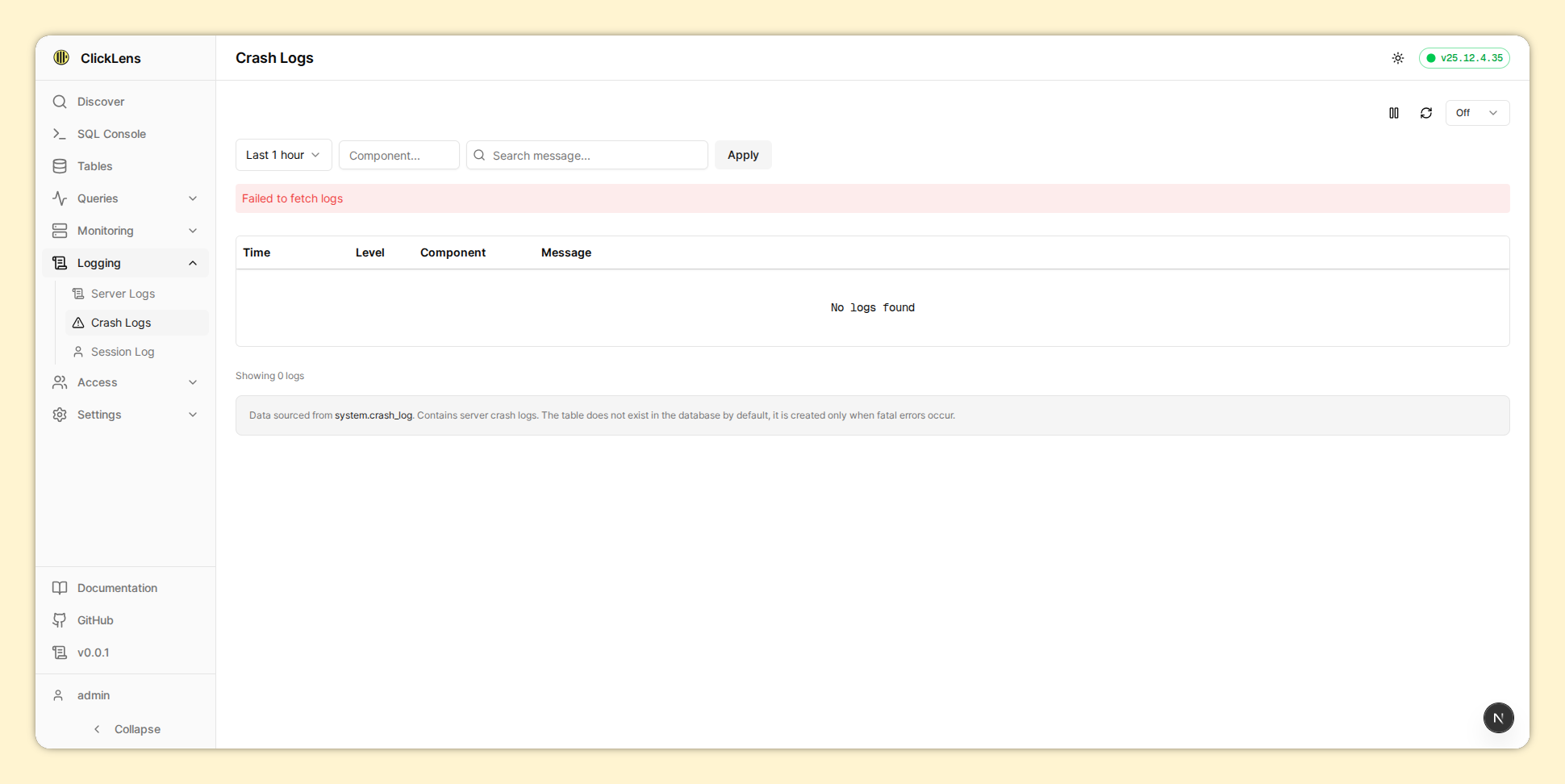
| Logging | Server logs, session logs, and crash logs |
| Access Control | User and role management with feature roles |
| Settings | View server and session settings |
| Multi-Cluster | Manage multiple ClickHouse clusters from a single login screen |
3. Multi-Cluster Support
ClickLens supports connecting to multiple independent ClickHouse clusters from a single instance. Each cluster is registered in the CLICKHOUSE_CLUSTERS environment variable, and users select which cluster to log into from the login page.
Quick Start (Docker Compose)
cp env.sample .env.local
# Edit .env.local with your cluster definitions
docker compose -f docker-compose.multi-cluster.yml up --build -d
Each cluster entry in CLICKHOUSE_CLUSTERS requires:
| Field | Description |
|---|---|
id | Unique identifier for the cluster |
label | Display name shown in the UI |
host | ClickHouse HTTP host |
port | HTTP port (default 8123) |
lensUser | Service account for metadata ops |
lensPassword | Service account password |
Once logged in, every authenticated request is pinned to the selected cluster — queries, monitoring, schema browsing, and access control all operate against that cluster.
4. Tech Stack
ClickLens is built with modern technologies:
| Technology | Version | Purpose |
|---|---|---|
| Next.js | 16.1.1 | React framework with App Router |
| React | 19.2.3 | UI library |
| Tailwind CSS | 4.x | Styling |
| Zustand | 5.0.9 | State management |
| @clickhouse/client | 1.15.0 | ClickHouse HTTP client |
| iron-session | 8.0.4 | Secure session management |
| CodeMirror | 6.x | SQL editor |
| TanStack Table | 8.21.3 | Data tables |
| Recharts | 3.6.0 | Charts and histograms |
5. Security Model
ClickLens adheres to strict RBAC principles. Your UI permissions are derived directly from your ClickHouse user's grants—the UI never adds or removes permissions.
When you log in:
- ClickLens authenticates against your ClickHouse server
- Your grants are queried to determine available features
- The UI shows only what you have permission to access
This means:
- No separate permission management
- Consistent access between CLI and UI
- Full audit trail in ClickHouse
6. Getting Started
Ready to try ClickLens? Head to the Getting Started guide.
docker run -d \
  --name clicklens \
  -p 3000:3000 \
  -e CLICKHOUSE_CLUSTERS='[{"id":"primary","label":"Primary","host":"your-clickhouse-host","port":8123,"lensUser":"lensuser","lensPassword":"your-password"}]' \
  -e SESSION_SECRET=your-32-character-secret-key-here \
  -e NODE_ENV=production \
  ghcr.io/ntk148v/clicklens:latest
Legacy deployment:
CLICKHOUSE_HOST,LENS_USER, etc. are deprecated. See the deployment guide for migration.
7. Documentation Overview
| Section | Audience | Content |
|---|---|---|
| Getting Started | New Users | Installation, first login, dashboard |
| Features | End Users | All features with usage instructions |
| Architecture | Developers | Tech stack, data flow, internals |
| Deployment | Operators | Configuration, Docker, RBAC setup |
| Contributing | Contributors | Development setup, code guidelines |
AI generated documentation:
- https://zread.ai/ntk148v/clicklens (opens in a new tab)
- https://deepwiki.com/ntk148v/clicklens (opens in a new tab)
8. Screenshots
Discovery
| Overview | Filter | Expandable Row |
|---|---|---|
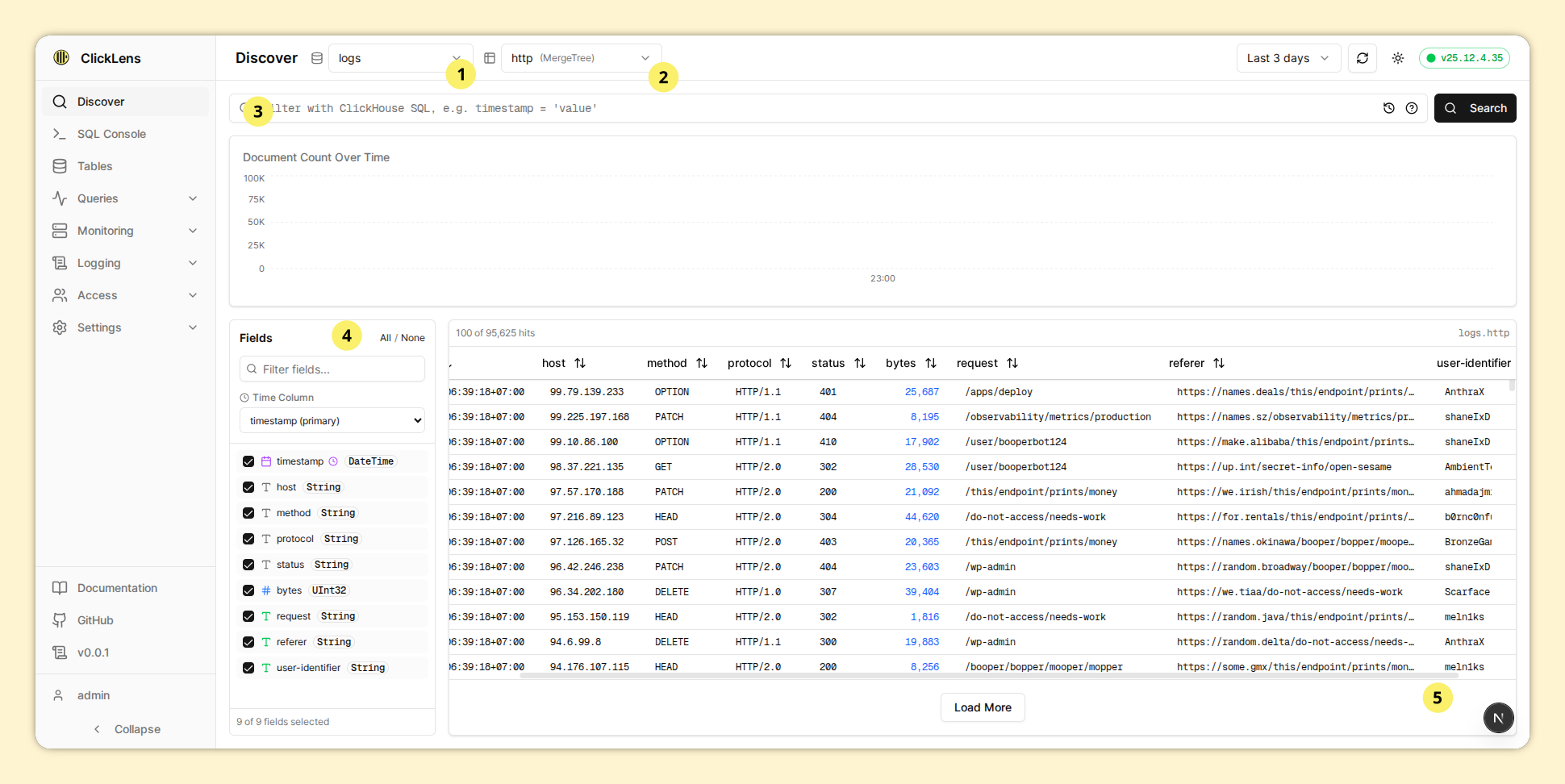 | 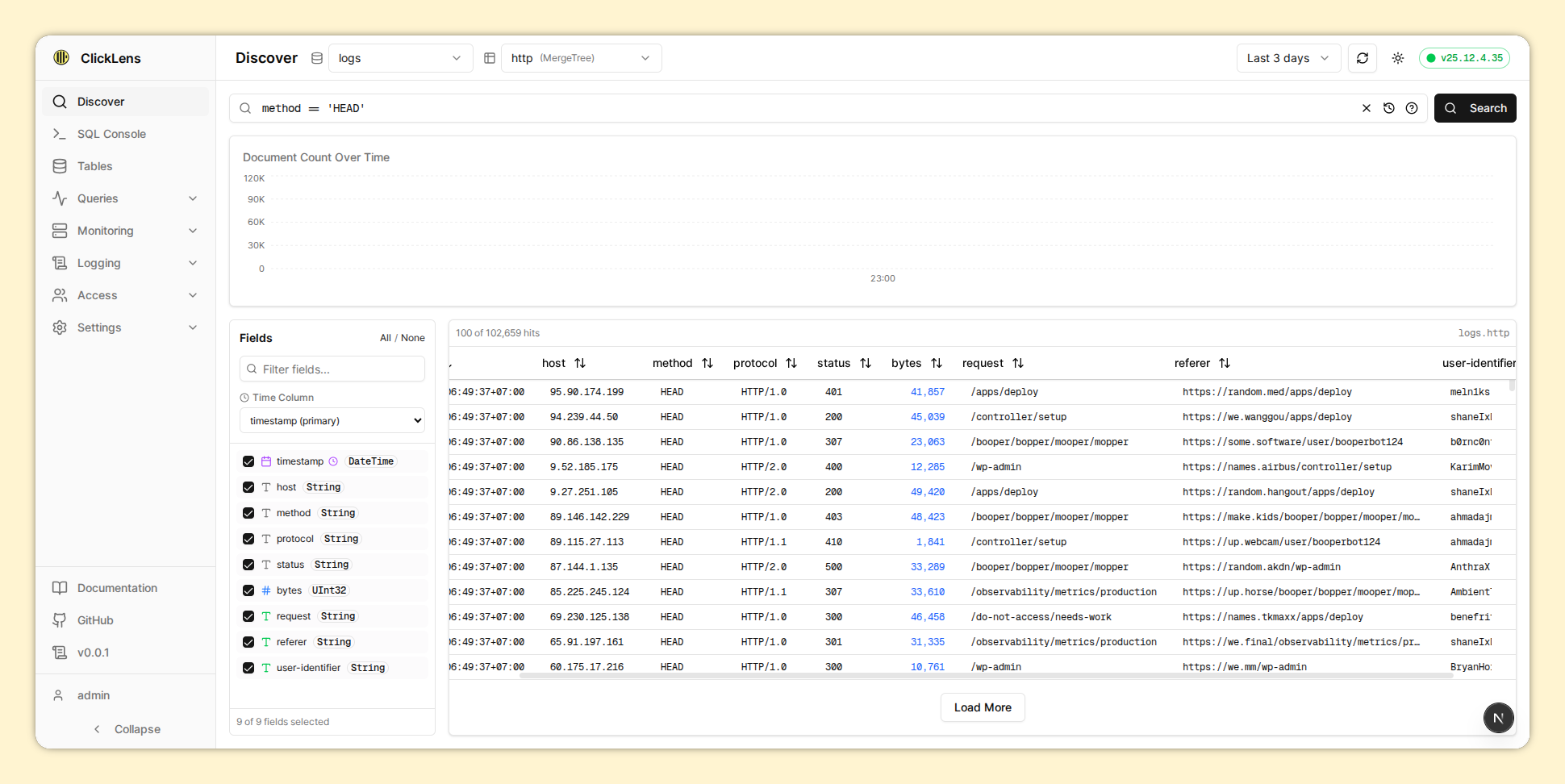 | 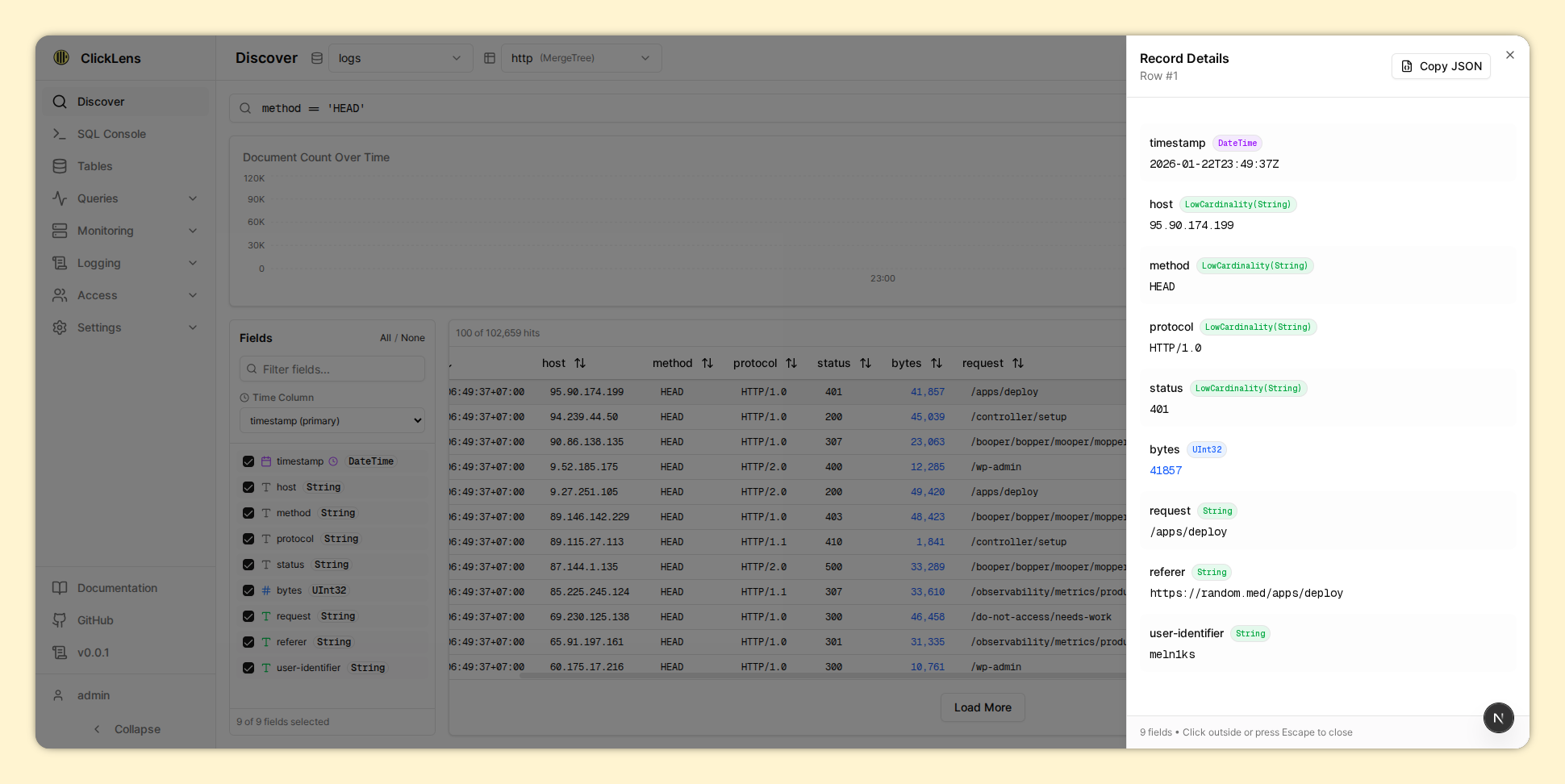 |
SQL Console
| Overview | Run Query | Results |
|---|---|---|
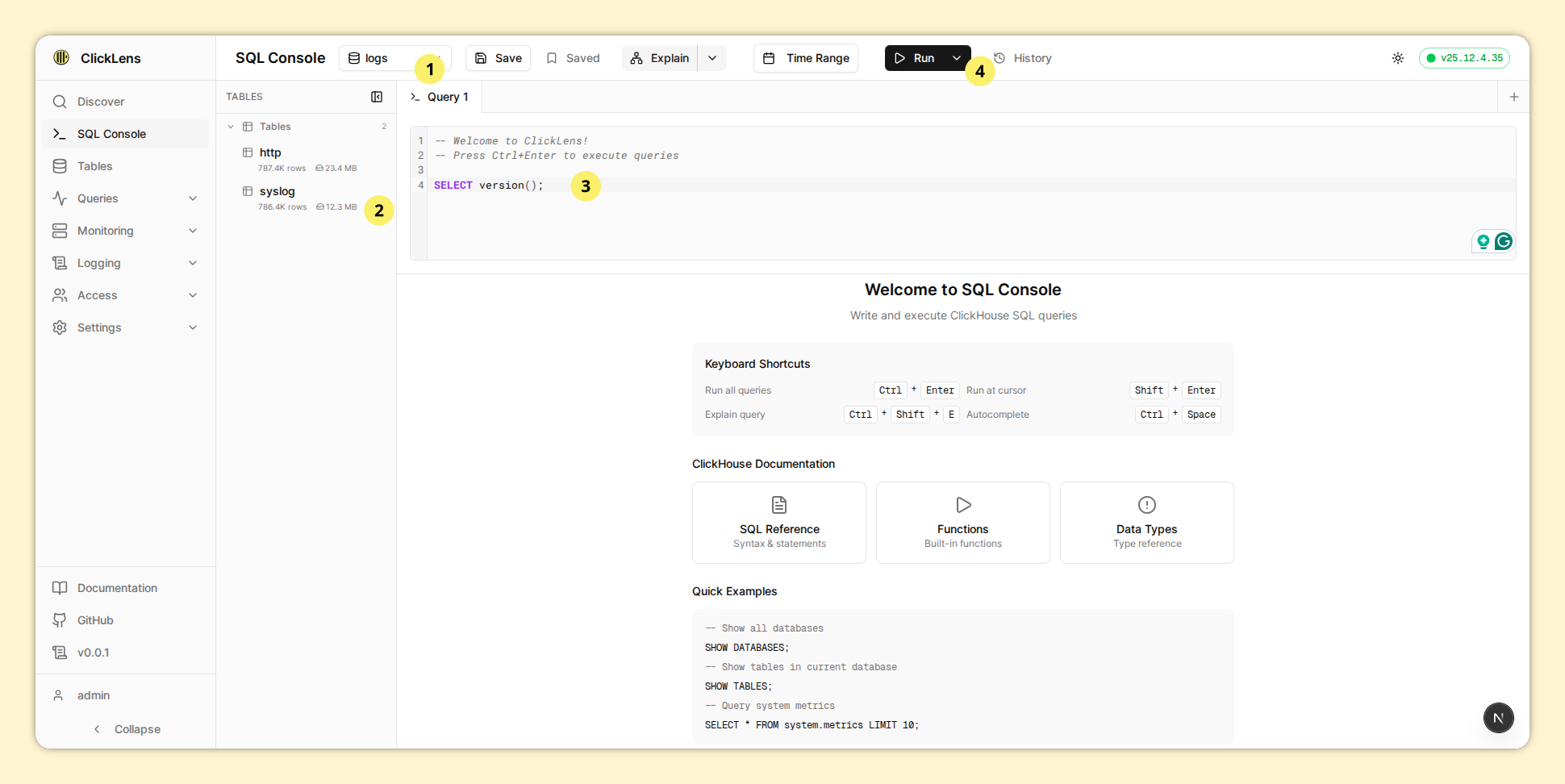 | 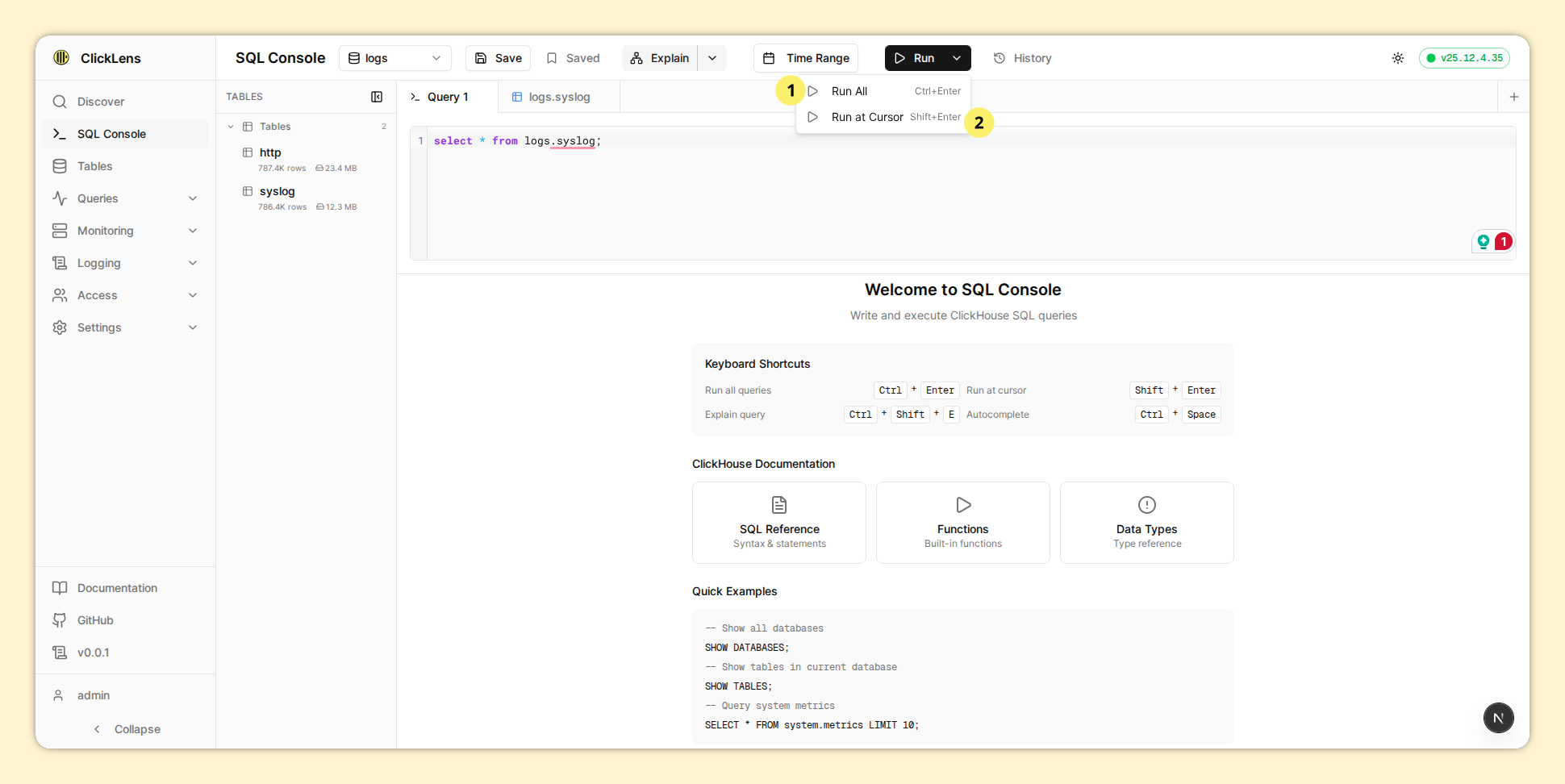 | 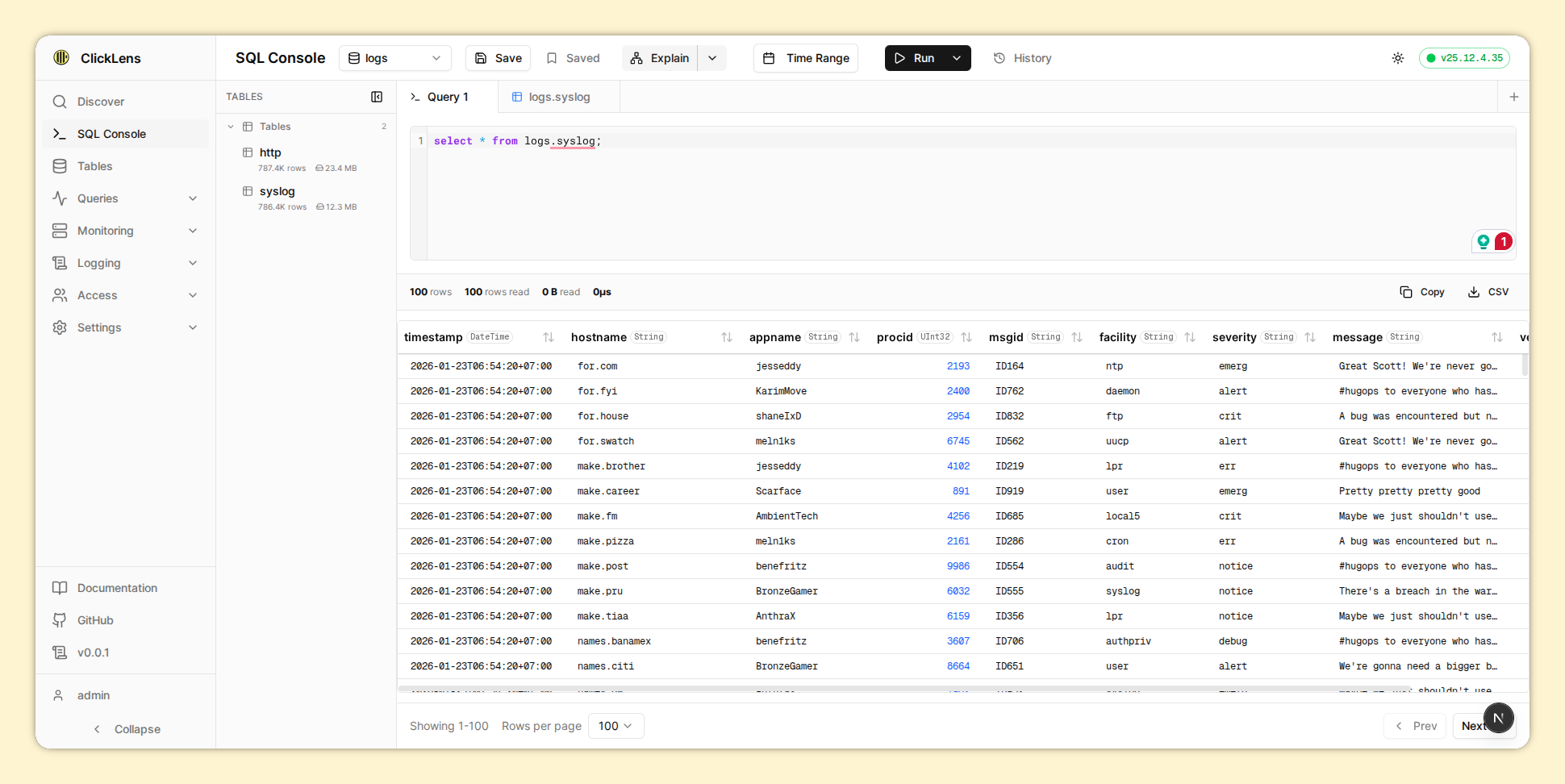 |
| History | Time Range | Table Preview |
|---|---|---|
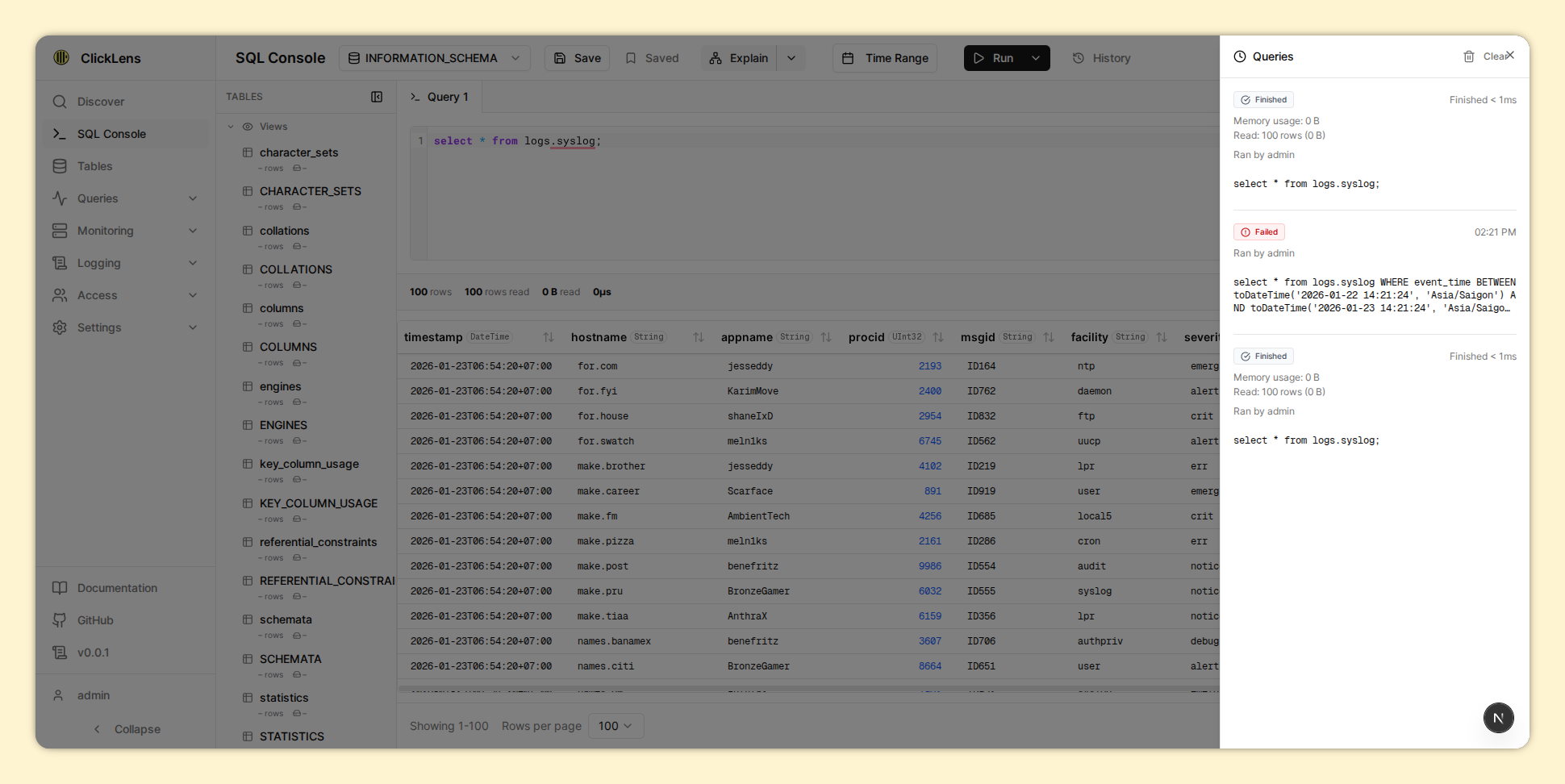 | 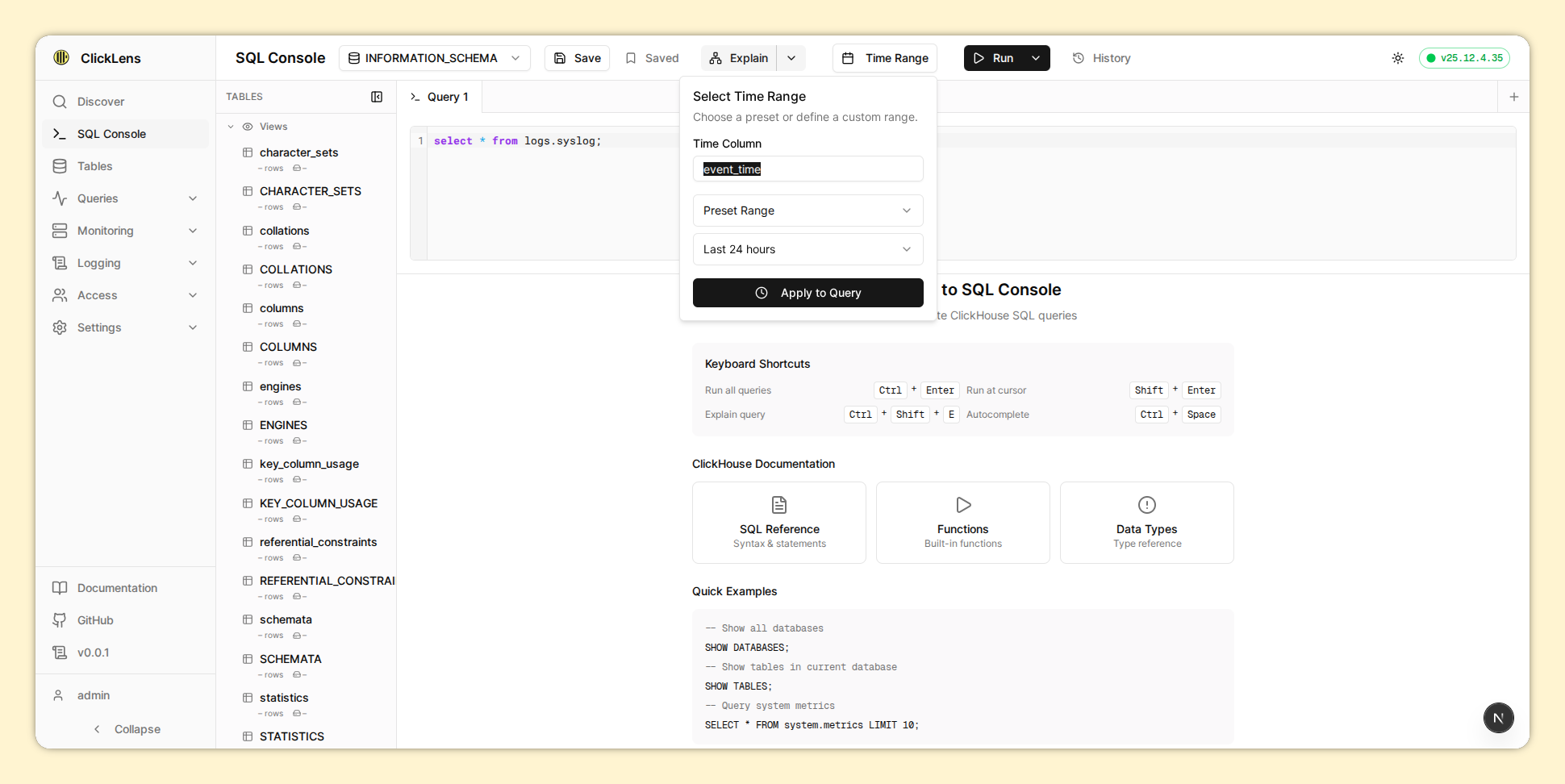 | 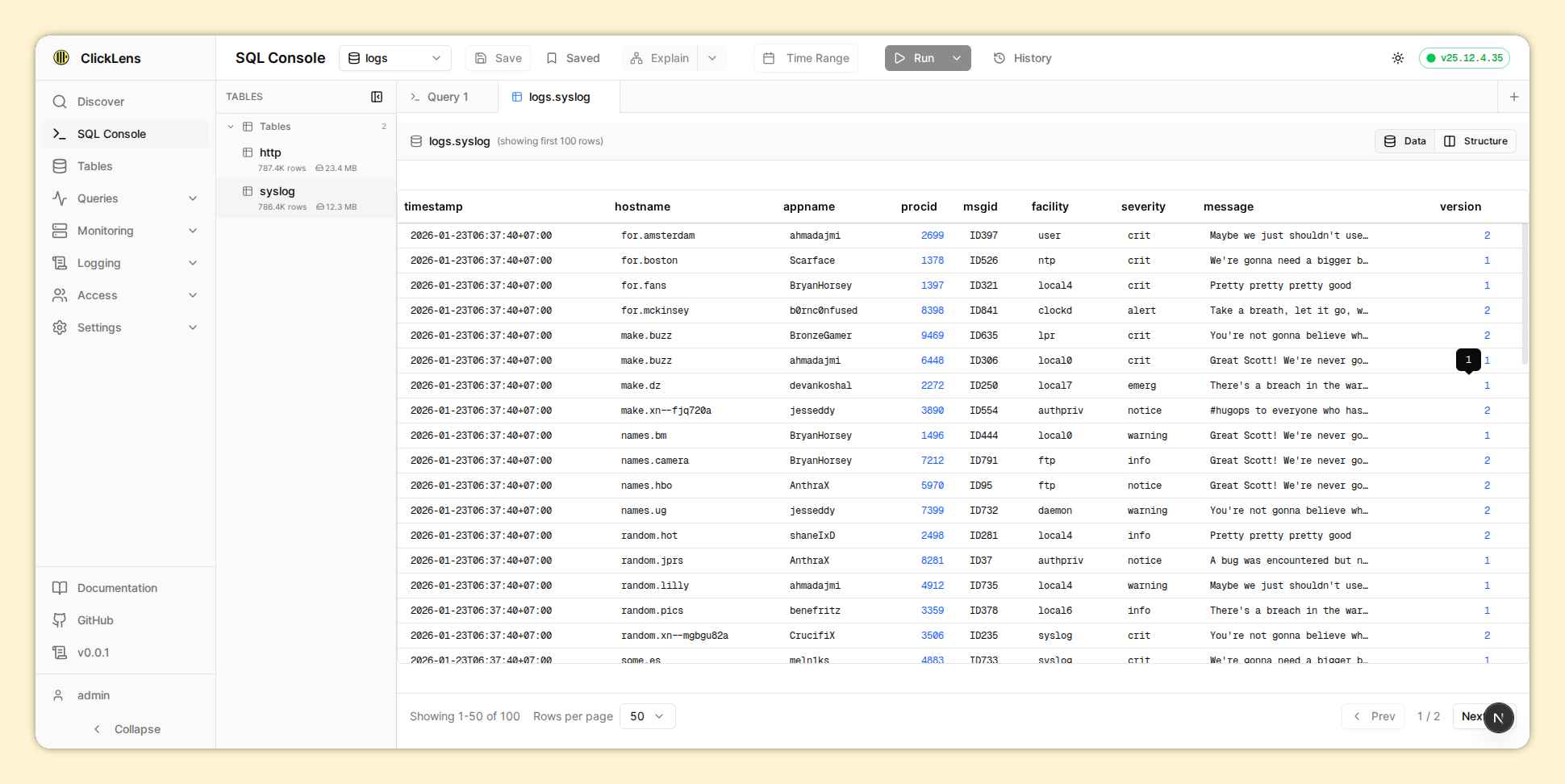 |
Monitoring
| Overview | Metrics | Async Metrics |
|---|---|---|
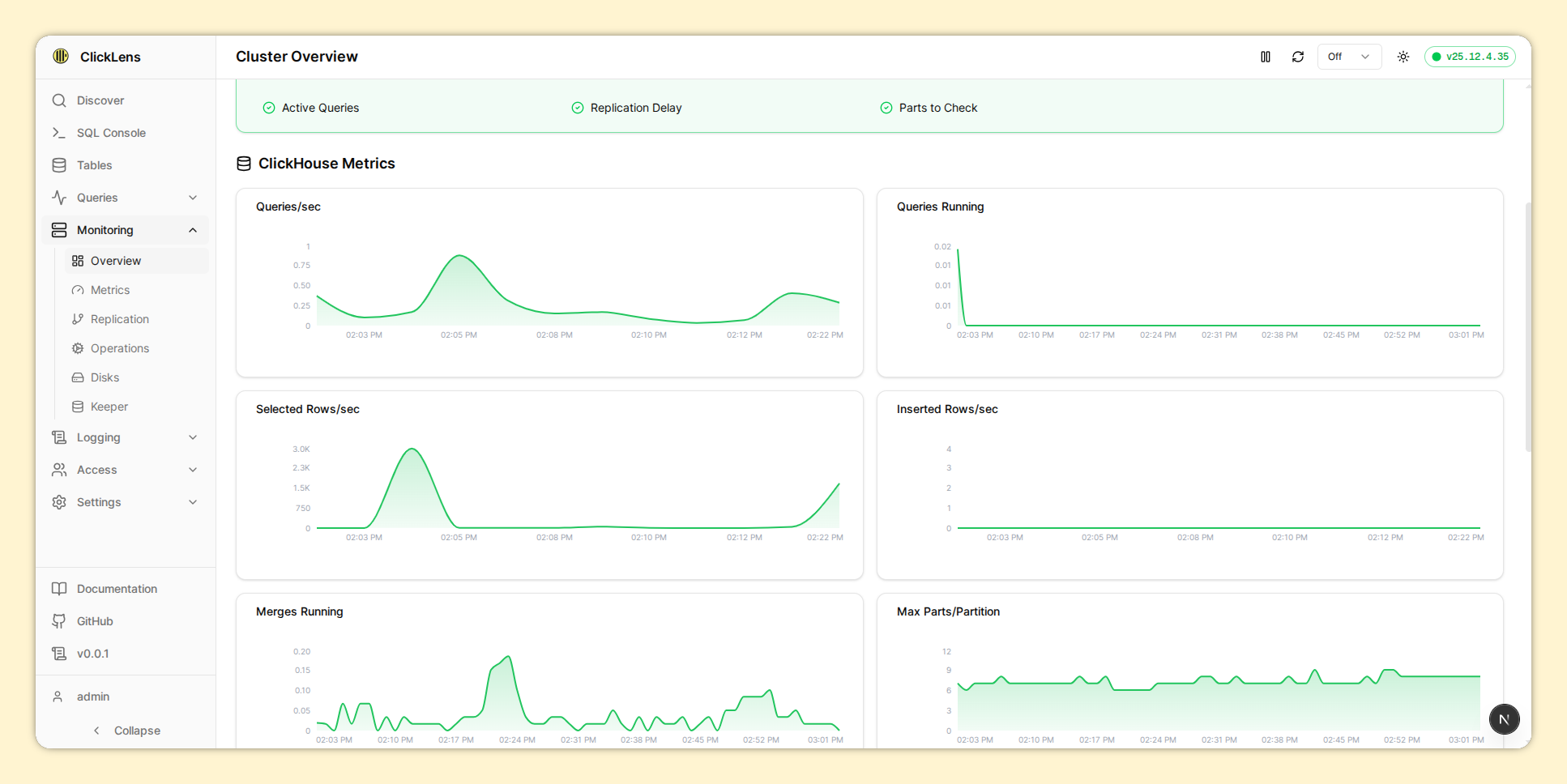 | 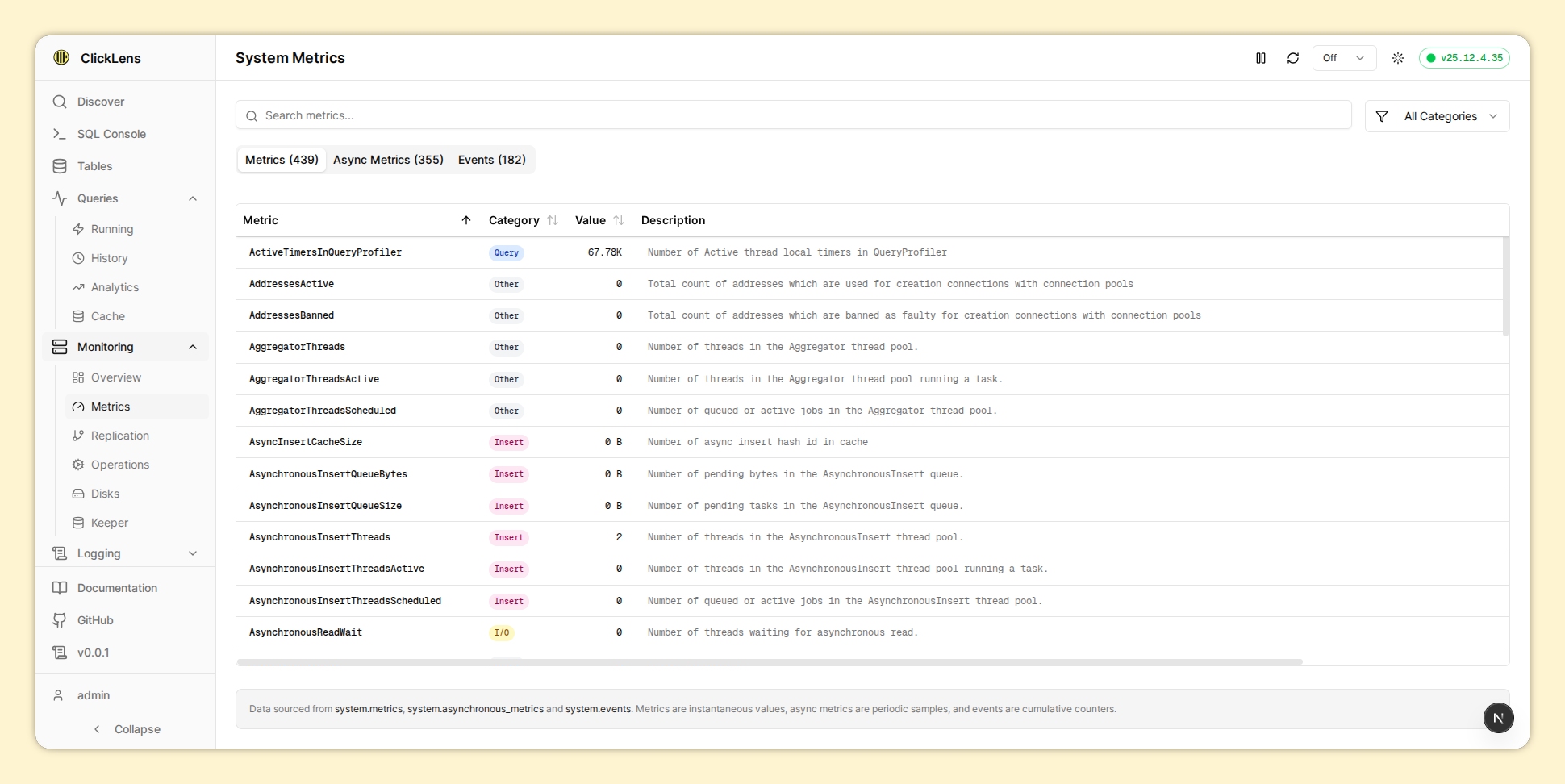 | 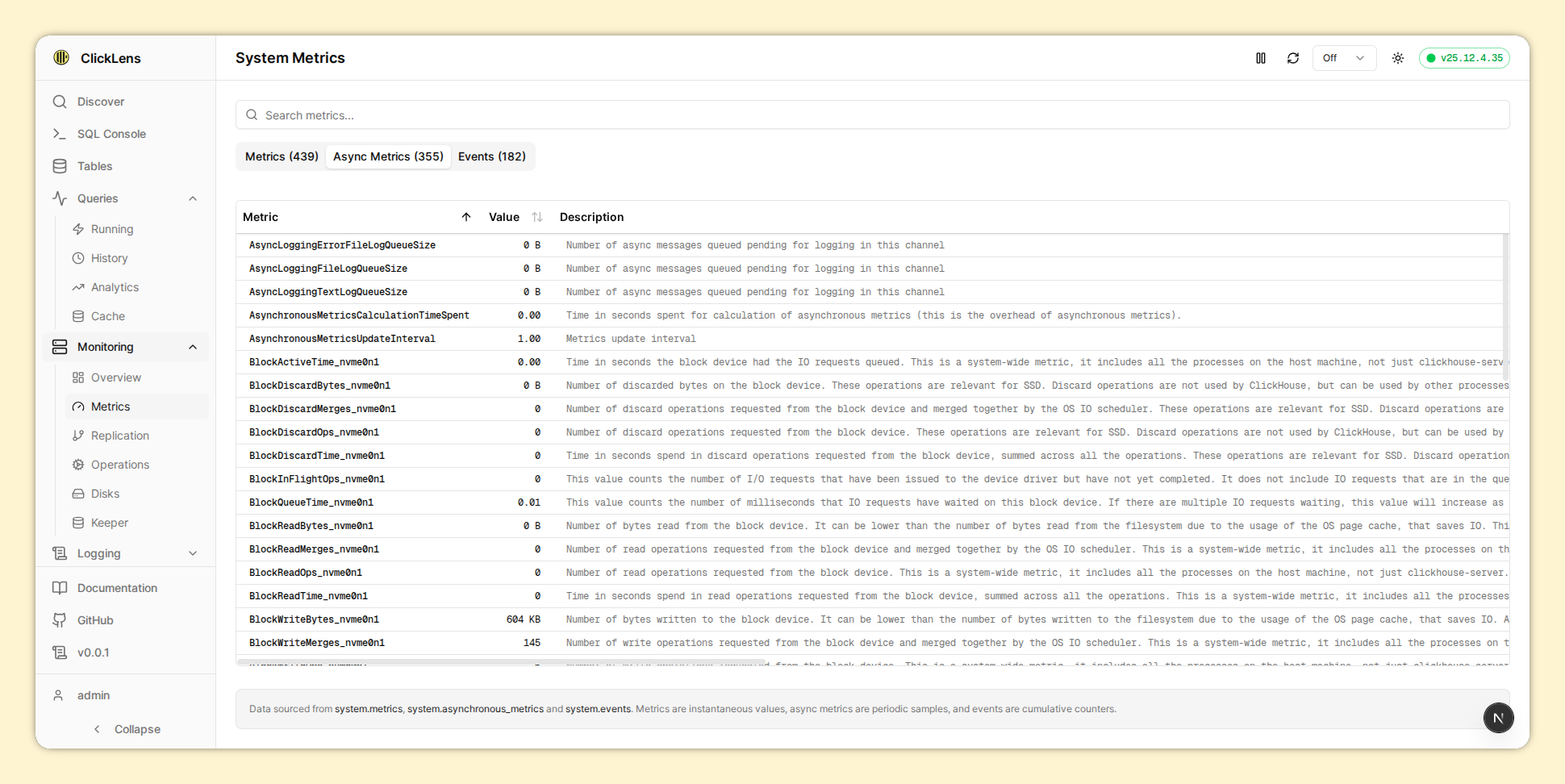 |
| Disks | ZooKeeper |
|---|---|
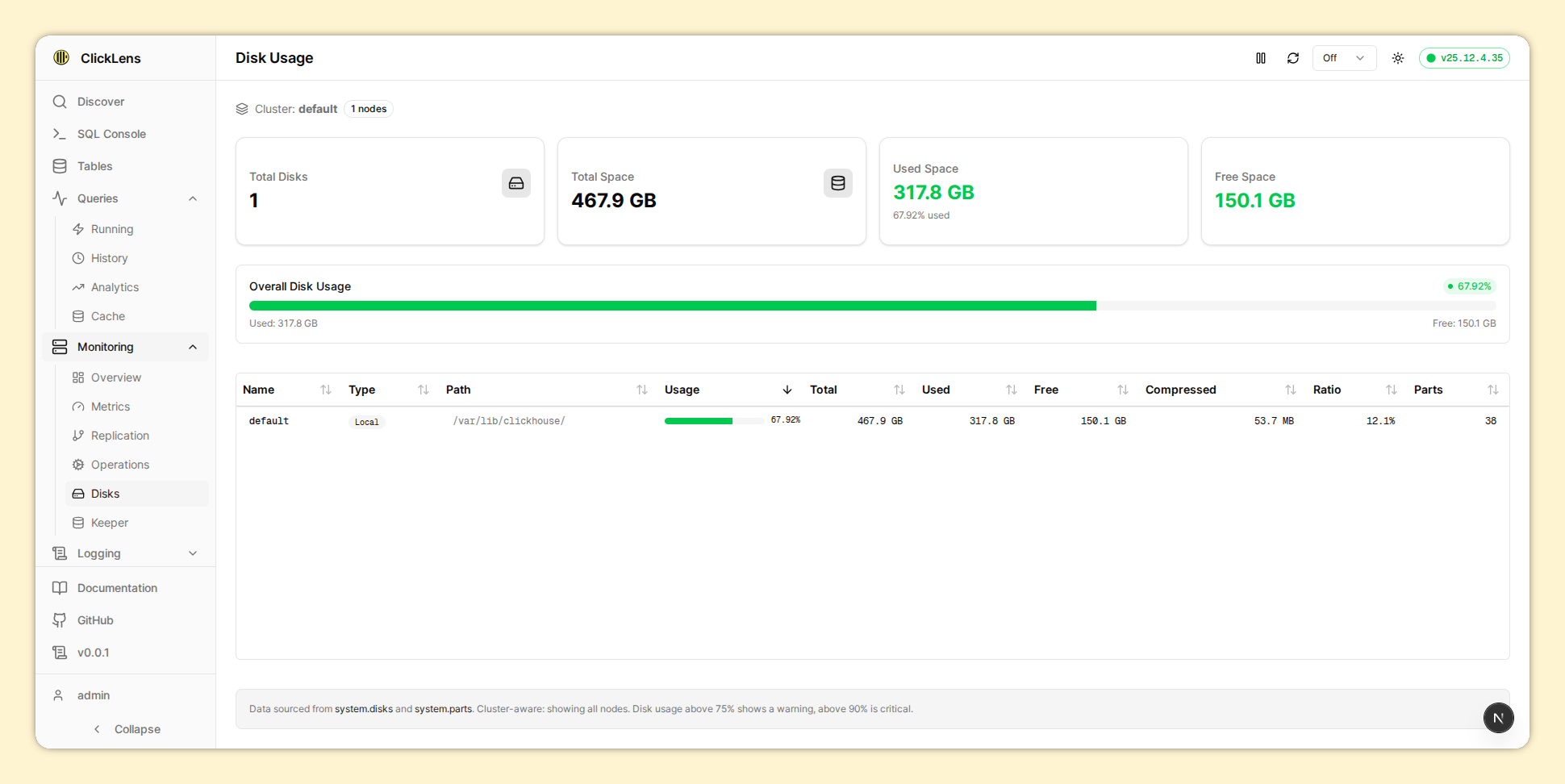 | 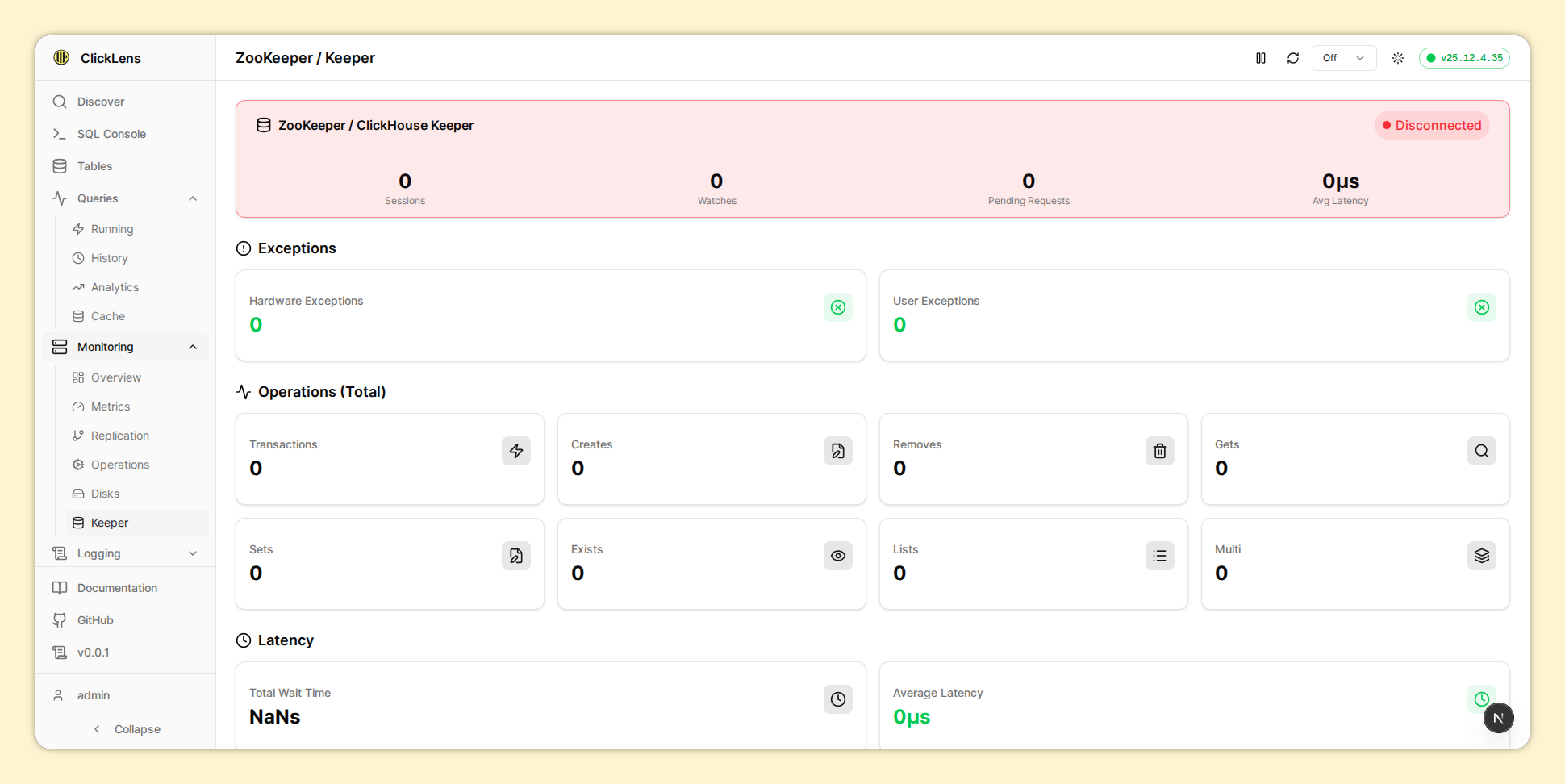 |
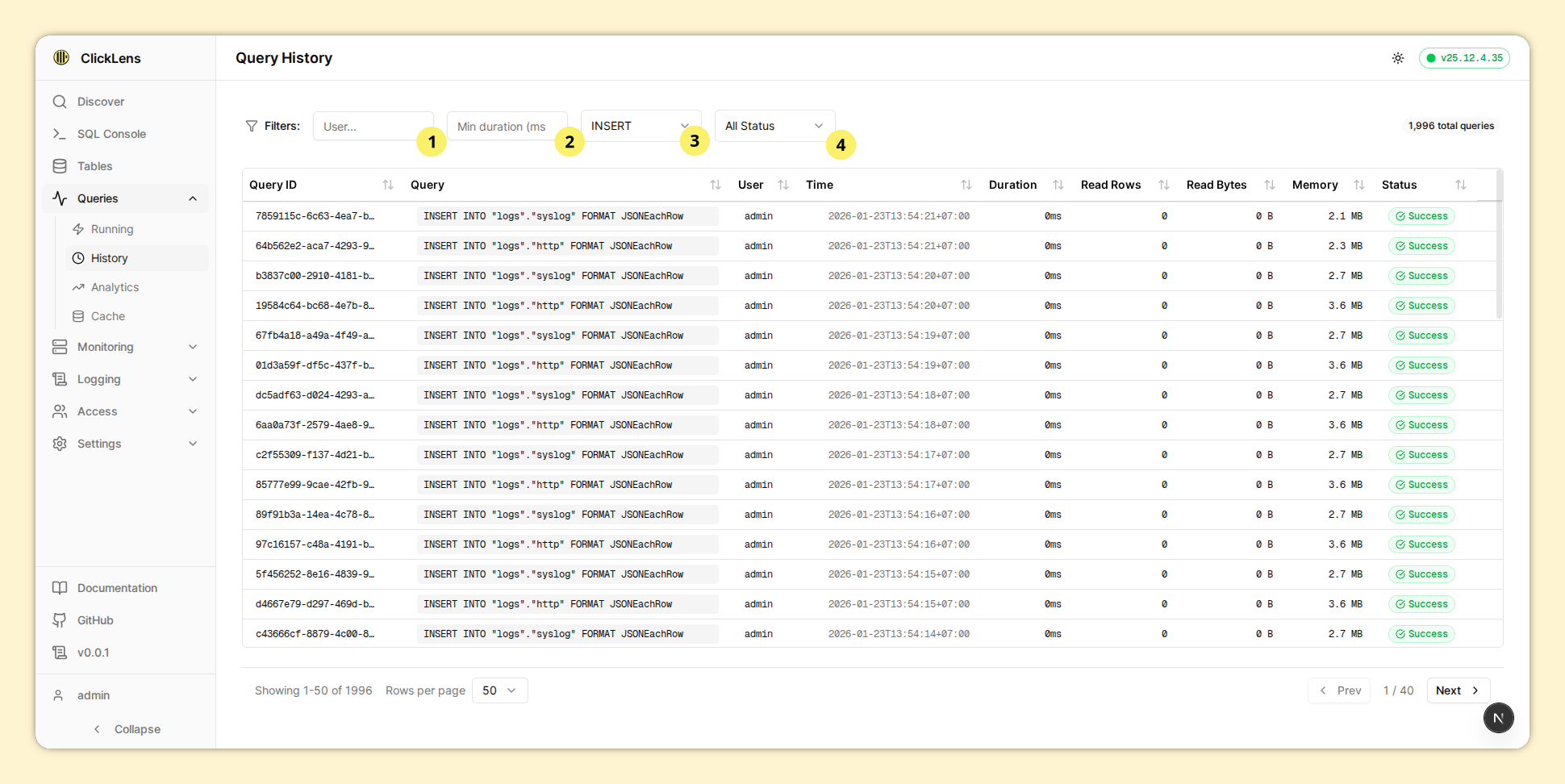
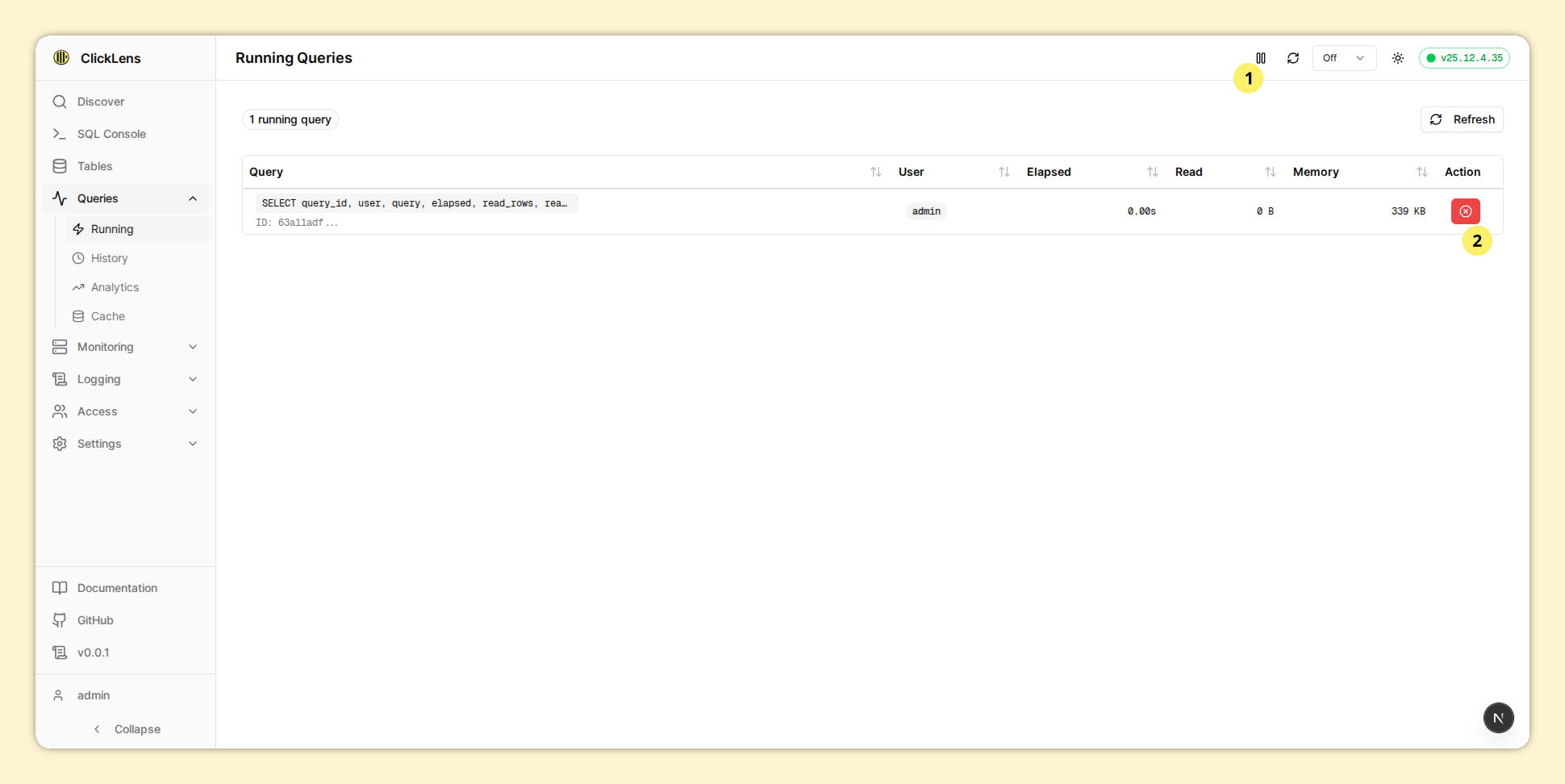
Queries
| History | History Filter | Running | Analytics |
|---|---|---|---|
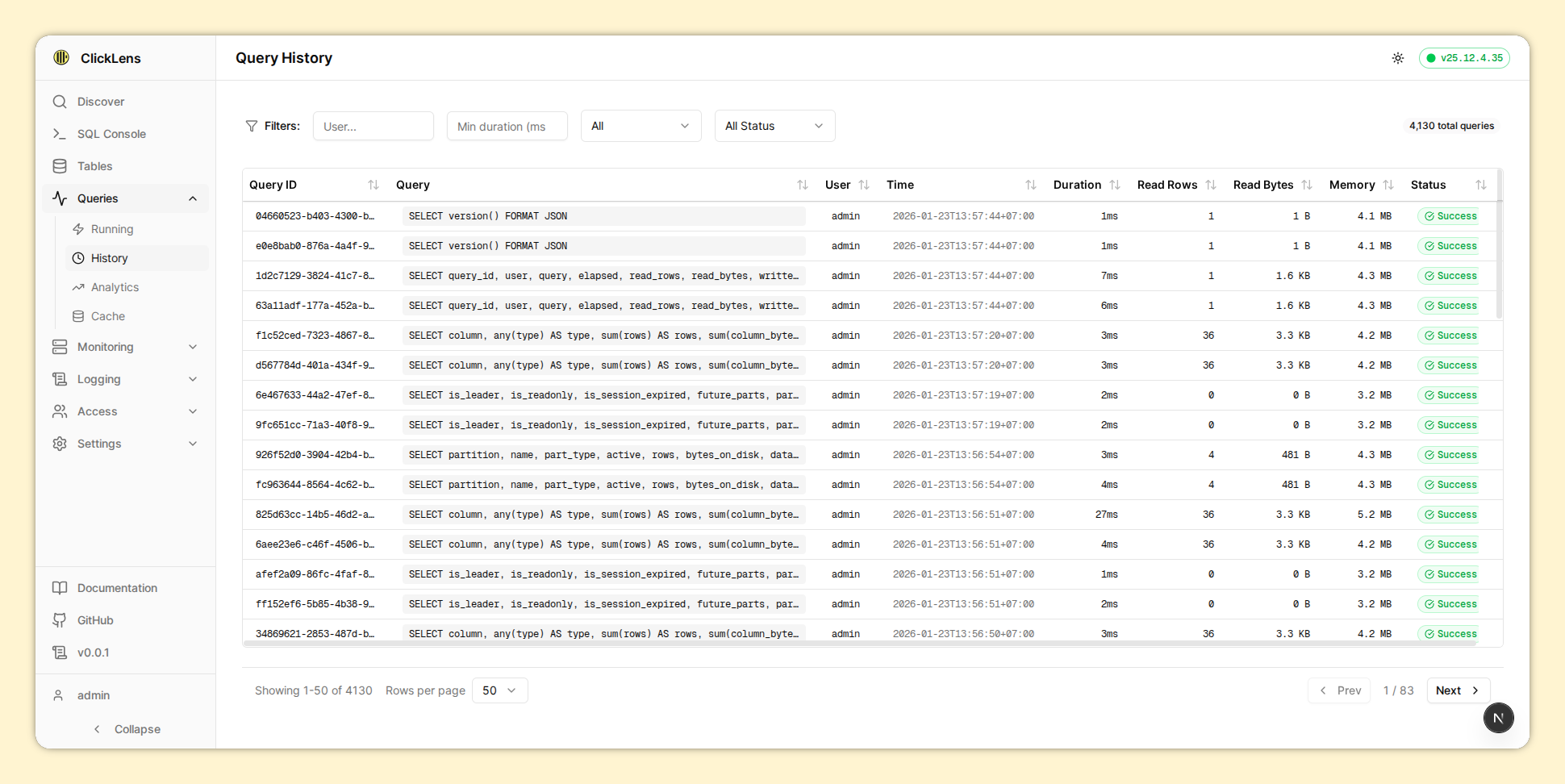 |  |  |  |
Access Control
| Users | Create User | Edit User |
|---|---|---|
 | 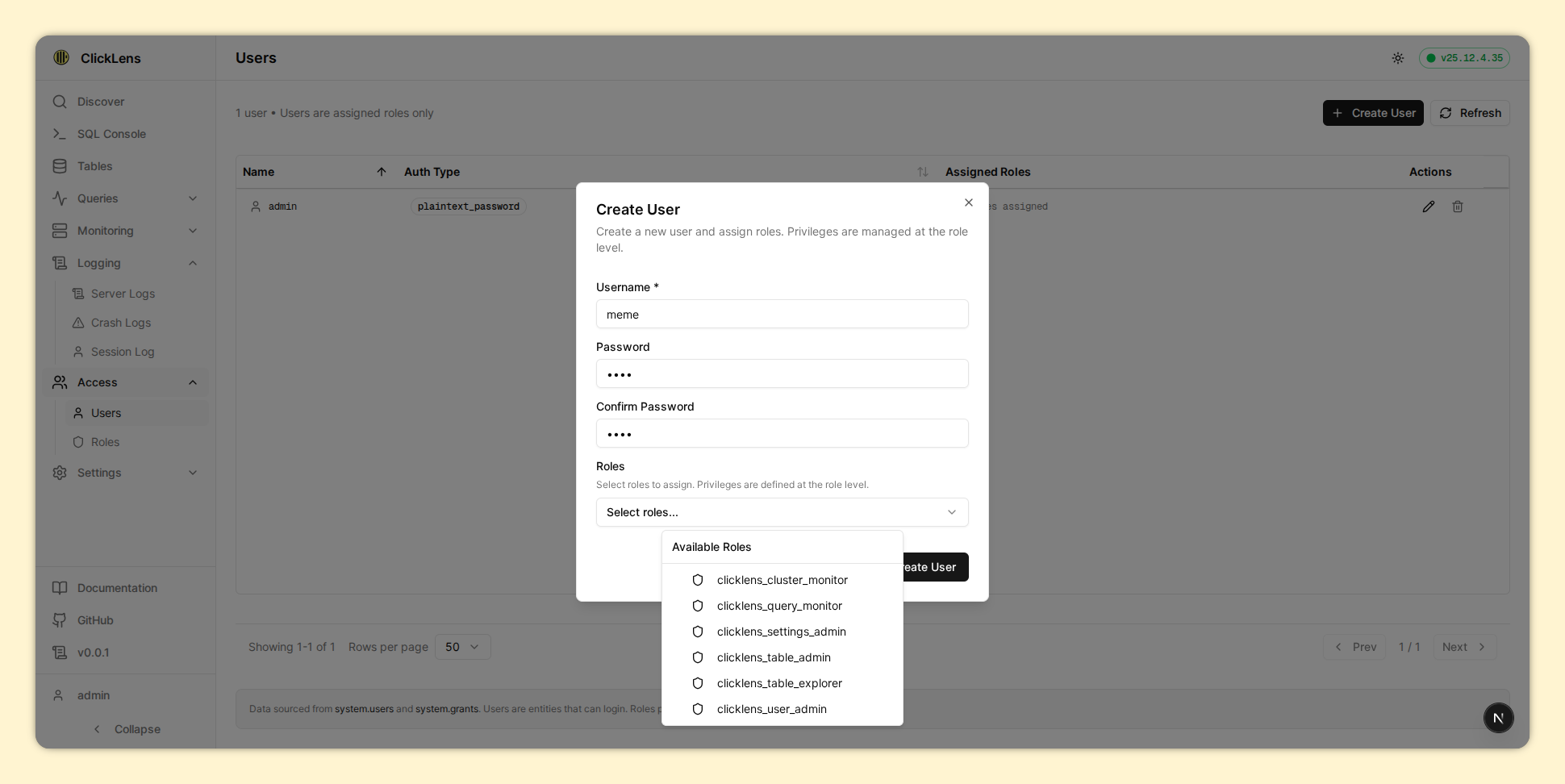 | 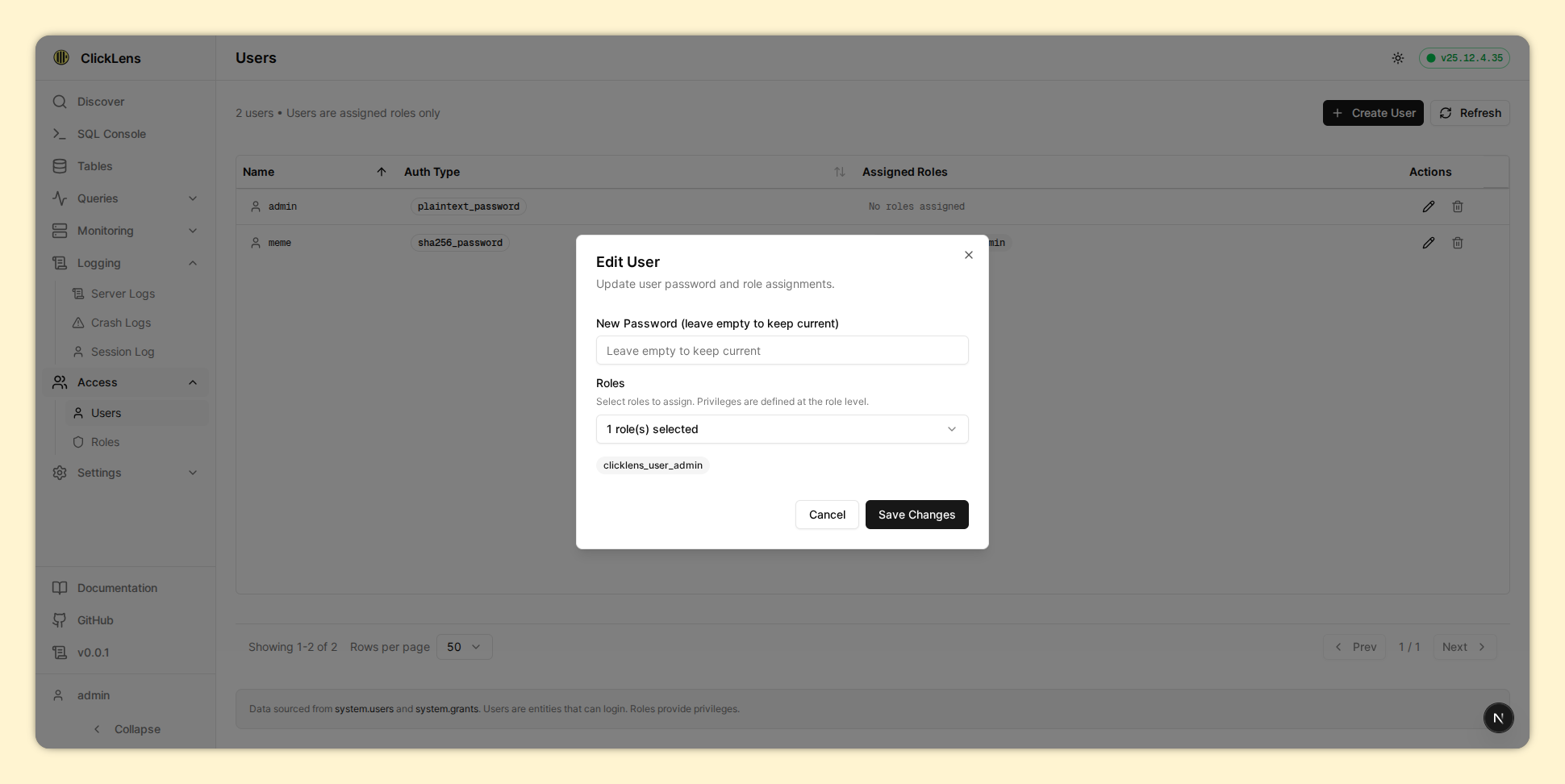 |
| Roles | Create Role | Feature Role |
|---|---|---|
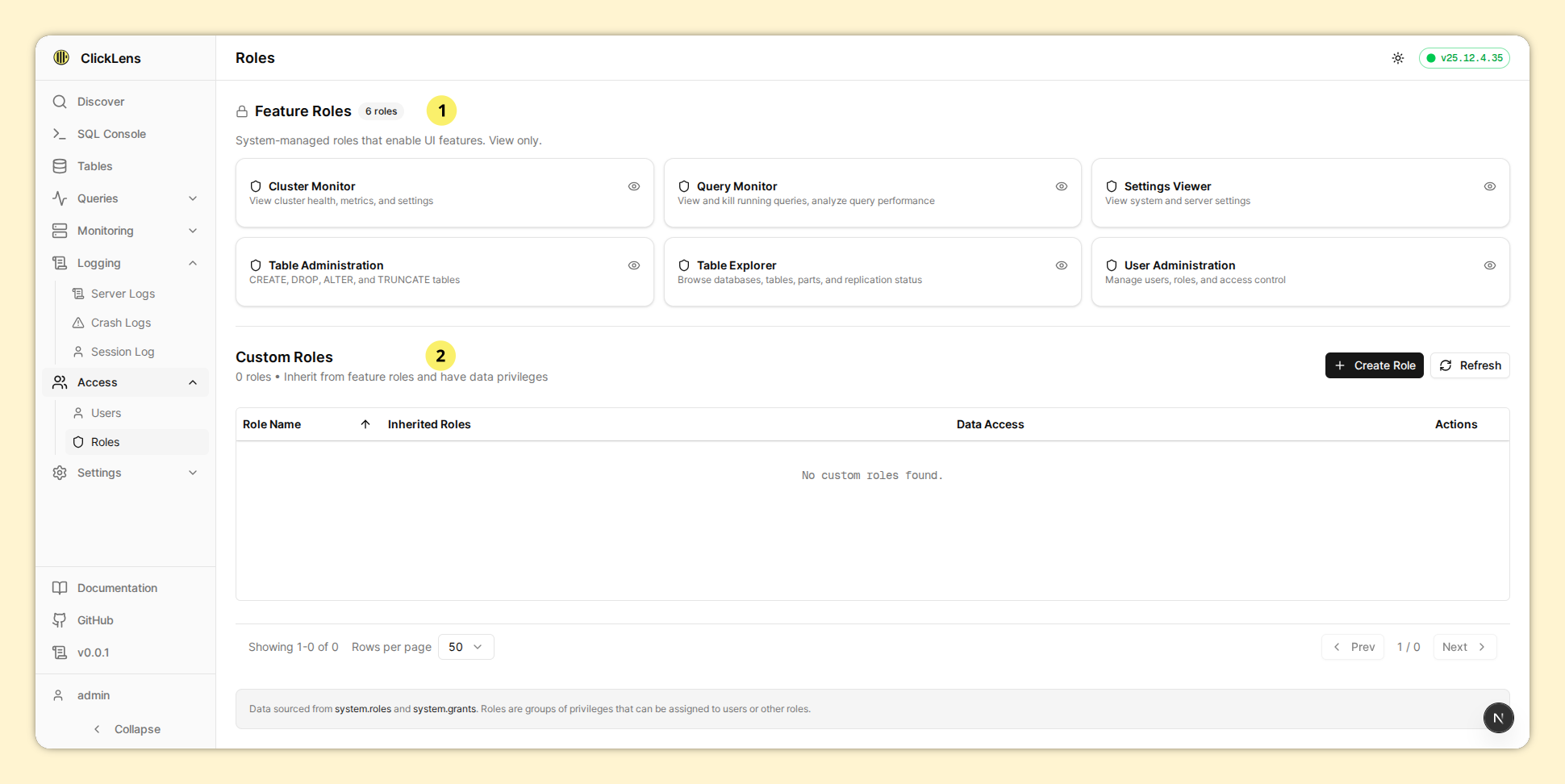 | 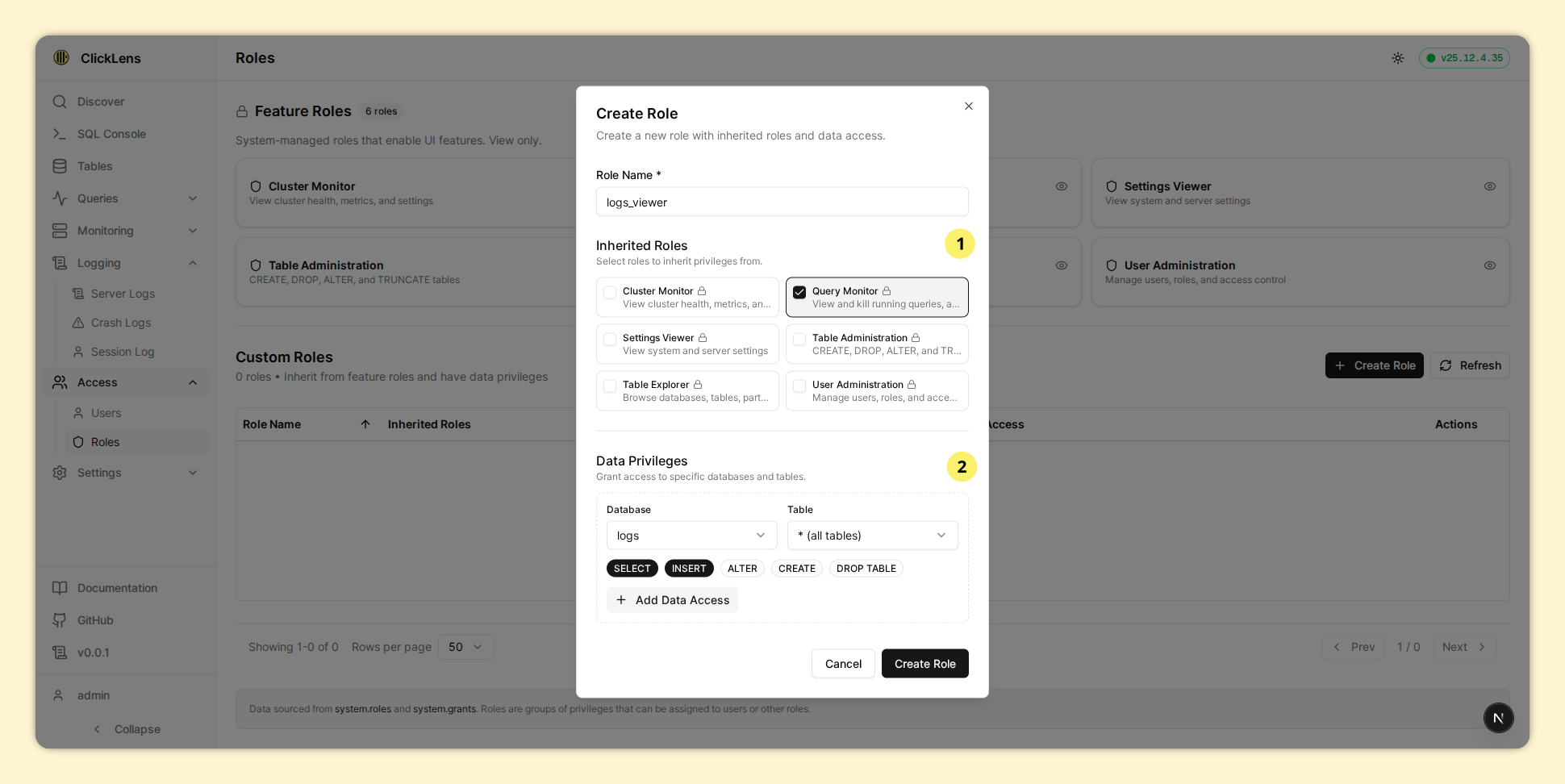 | 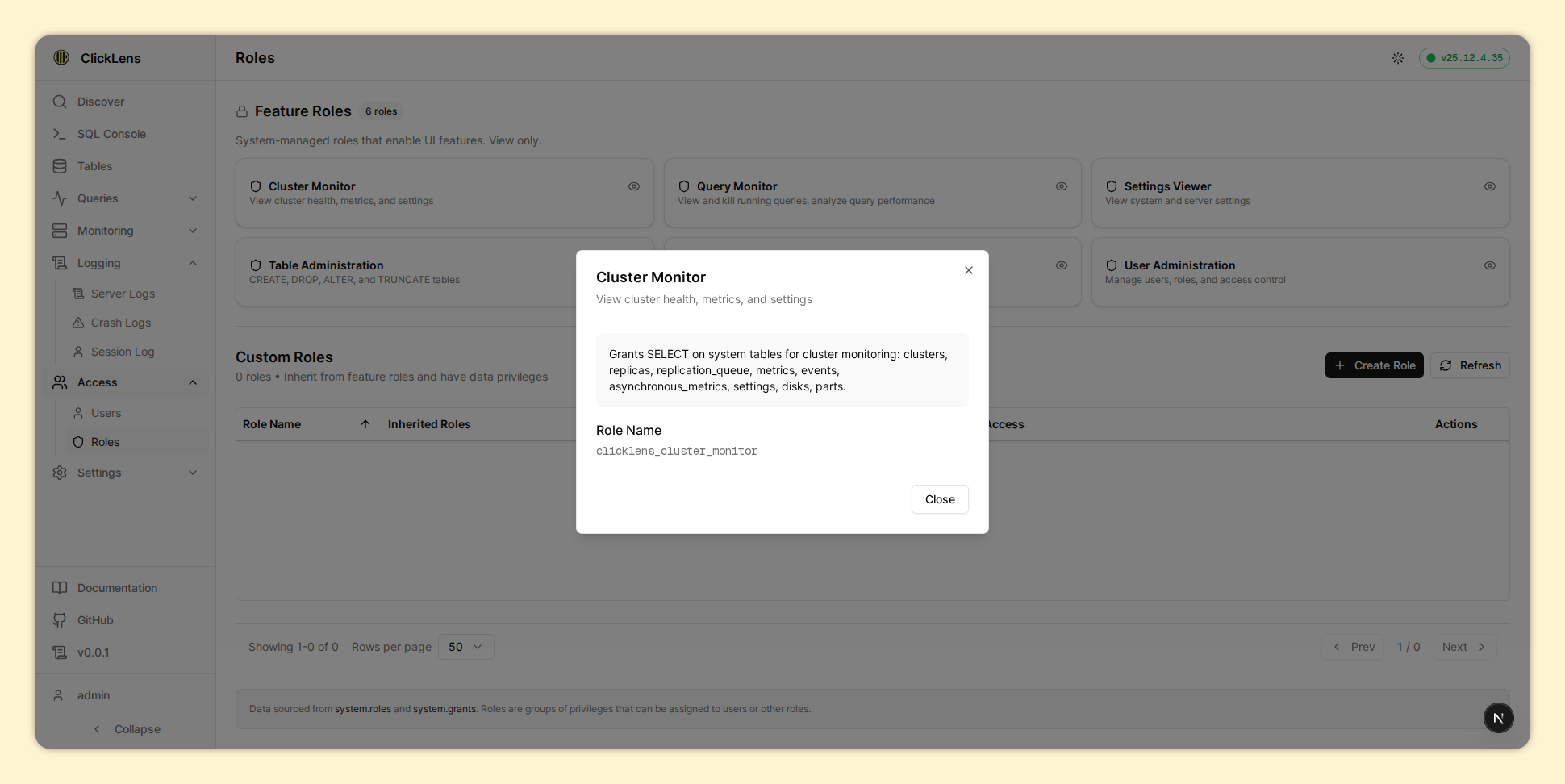 |
Settings
| Server Settings | Server Expandable | Session Settings | Session Expandable |
|---|---|---|---|
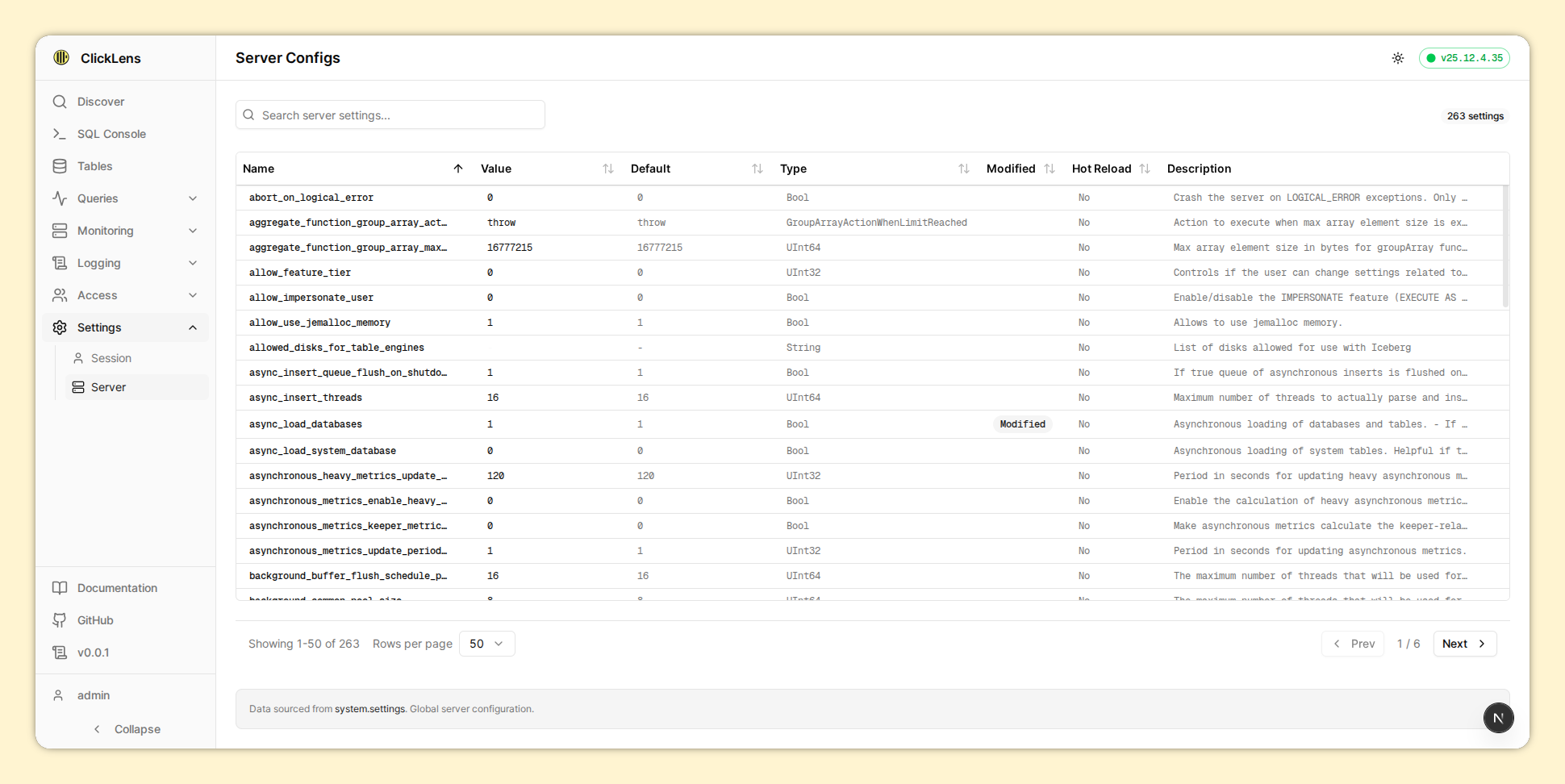 | 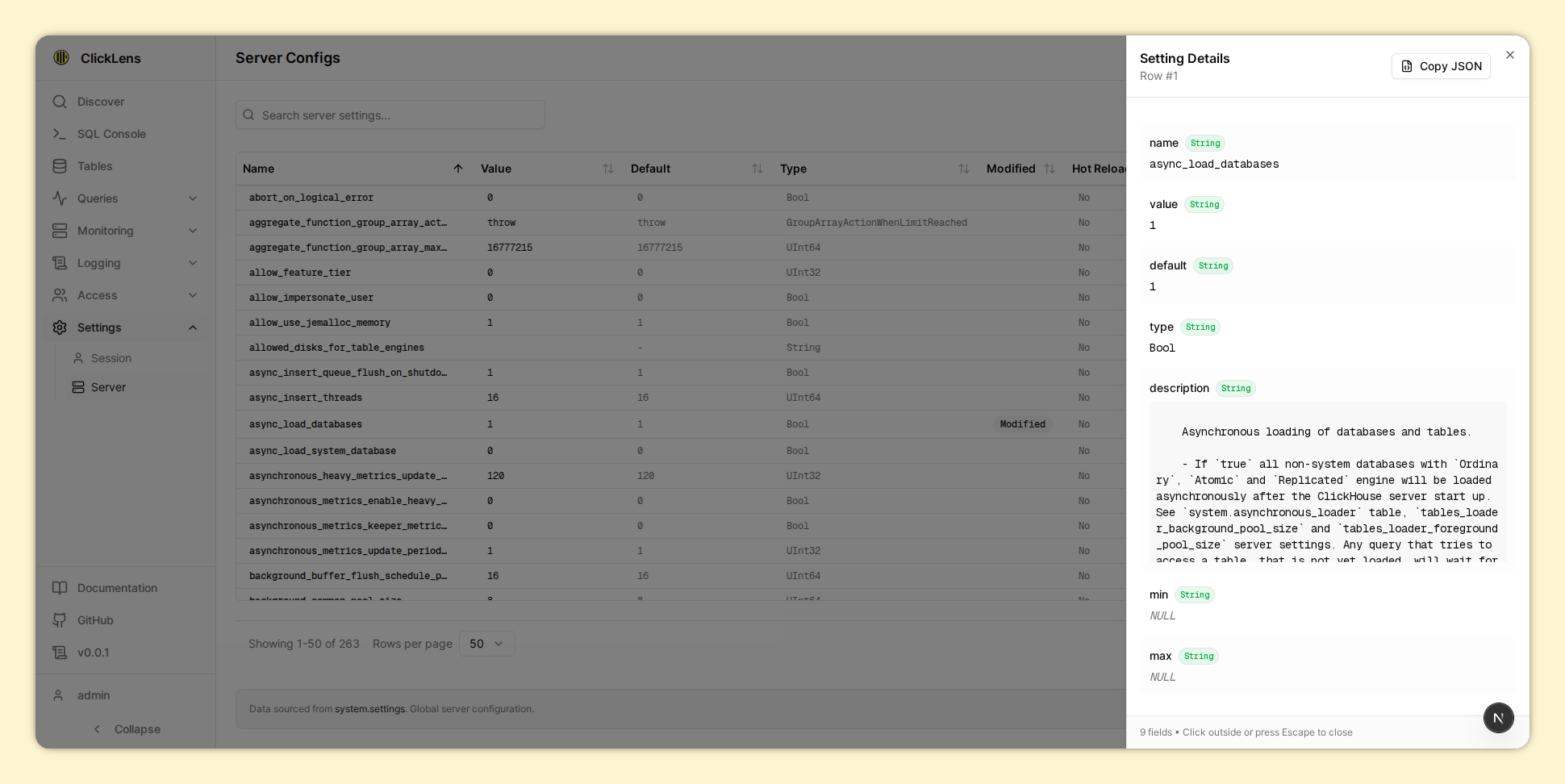 | 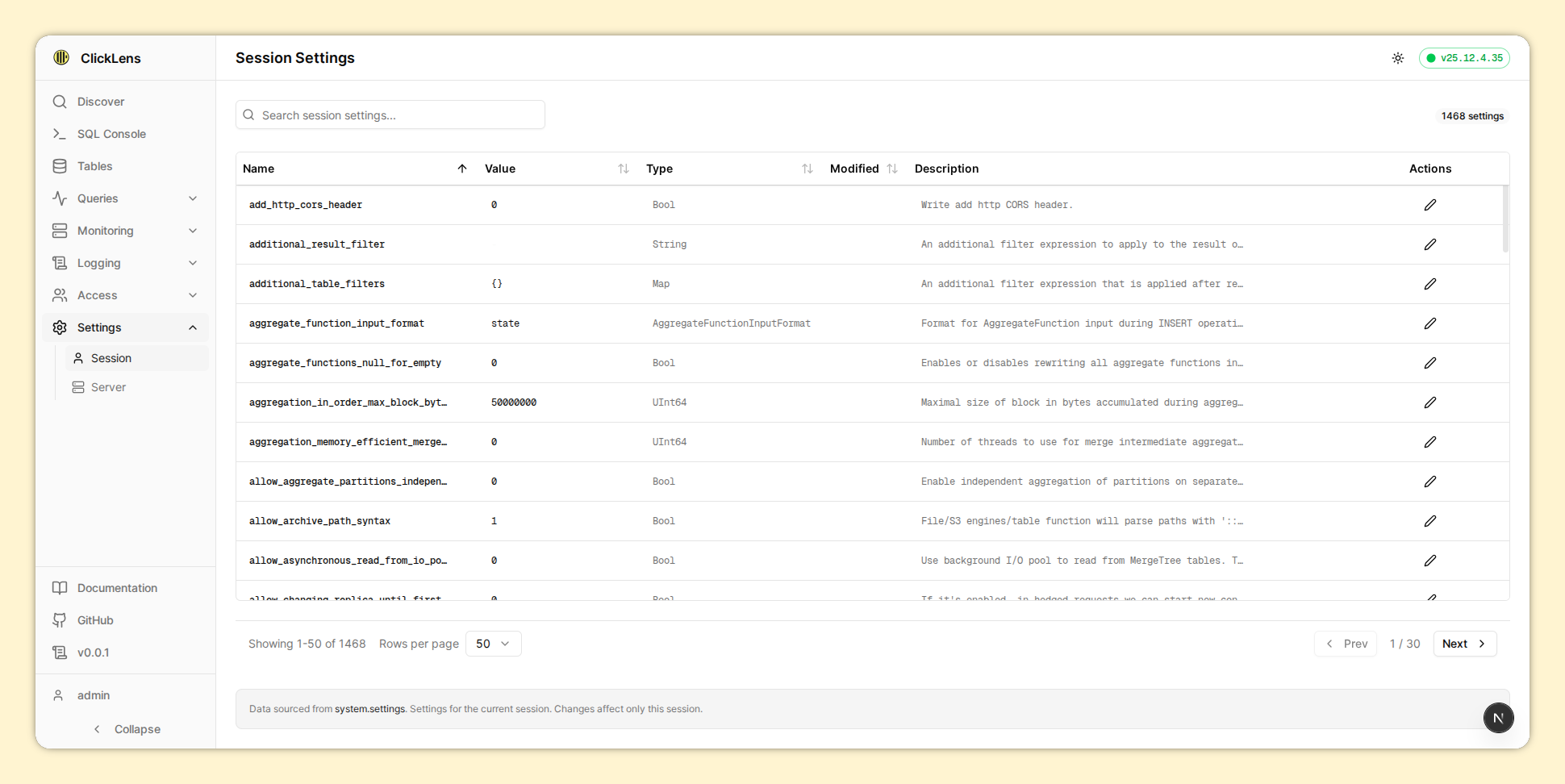 | 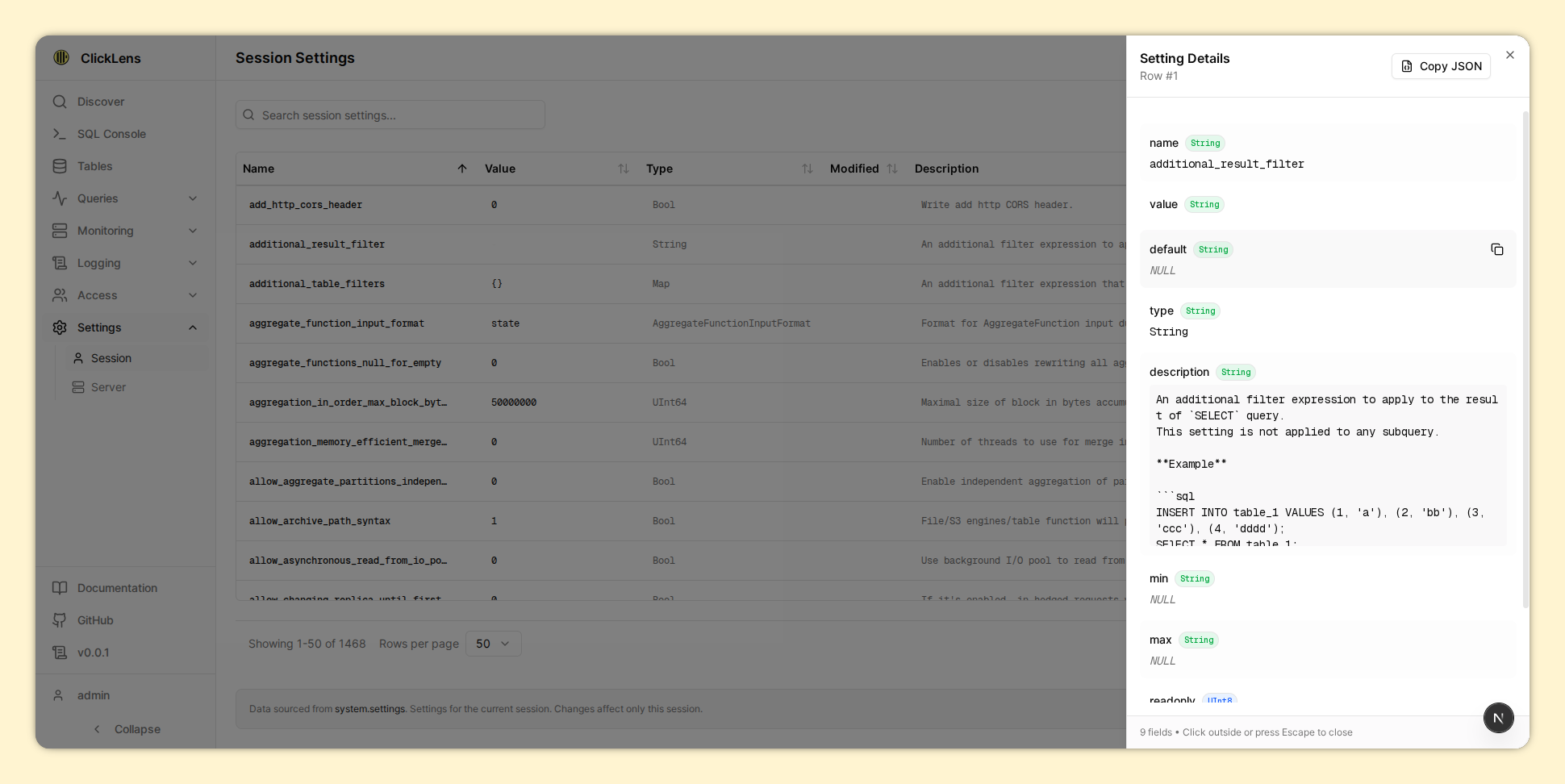 |
Tables
| Columns | Parts |
|---|---|
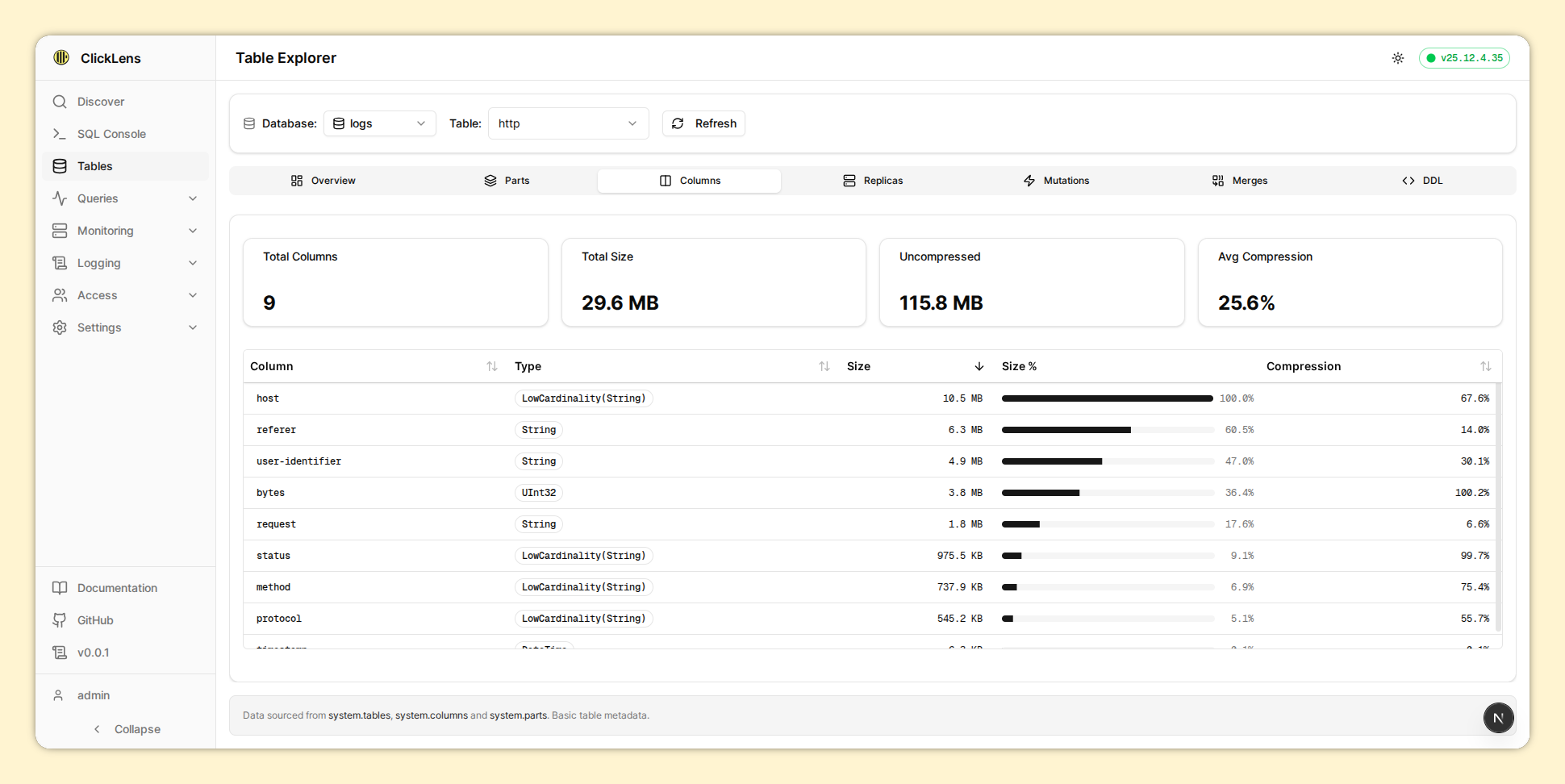 | 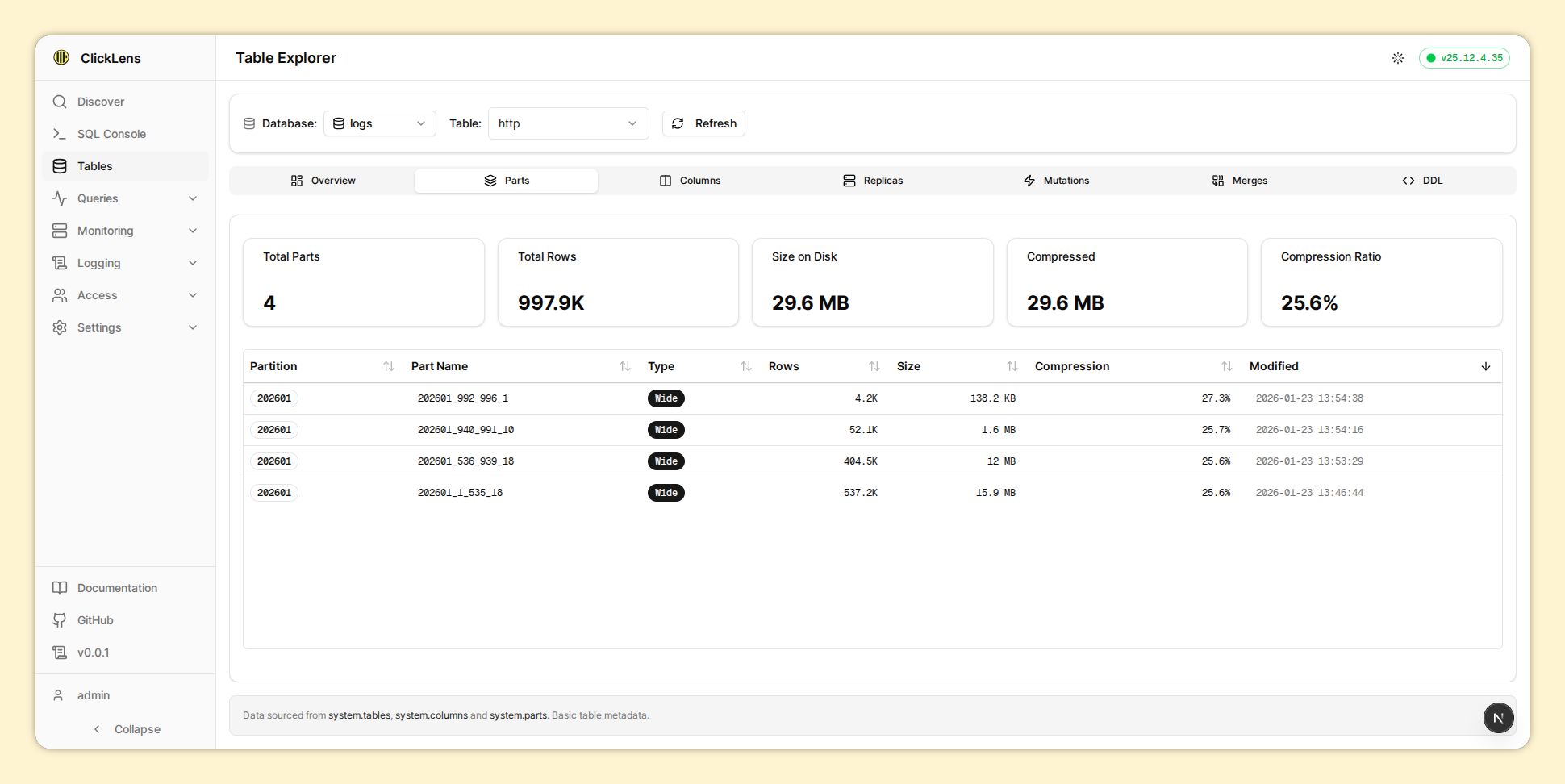 |
Logging
| Server Logs | Crash Logs |
|---|---|
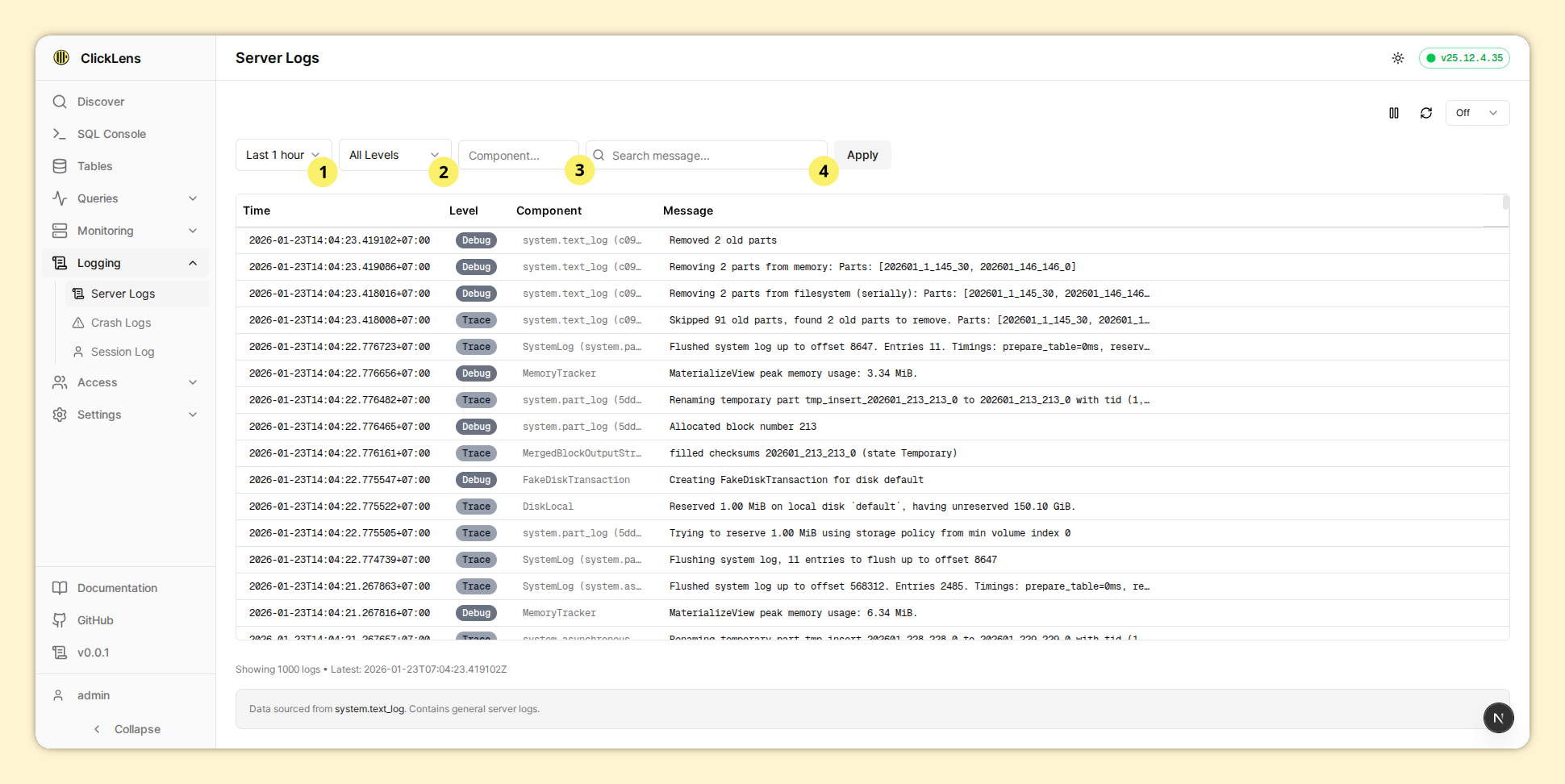 |  |
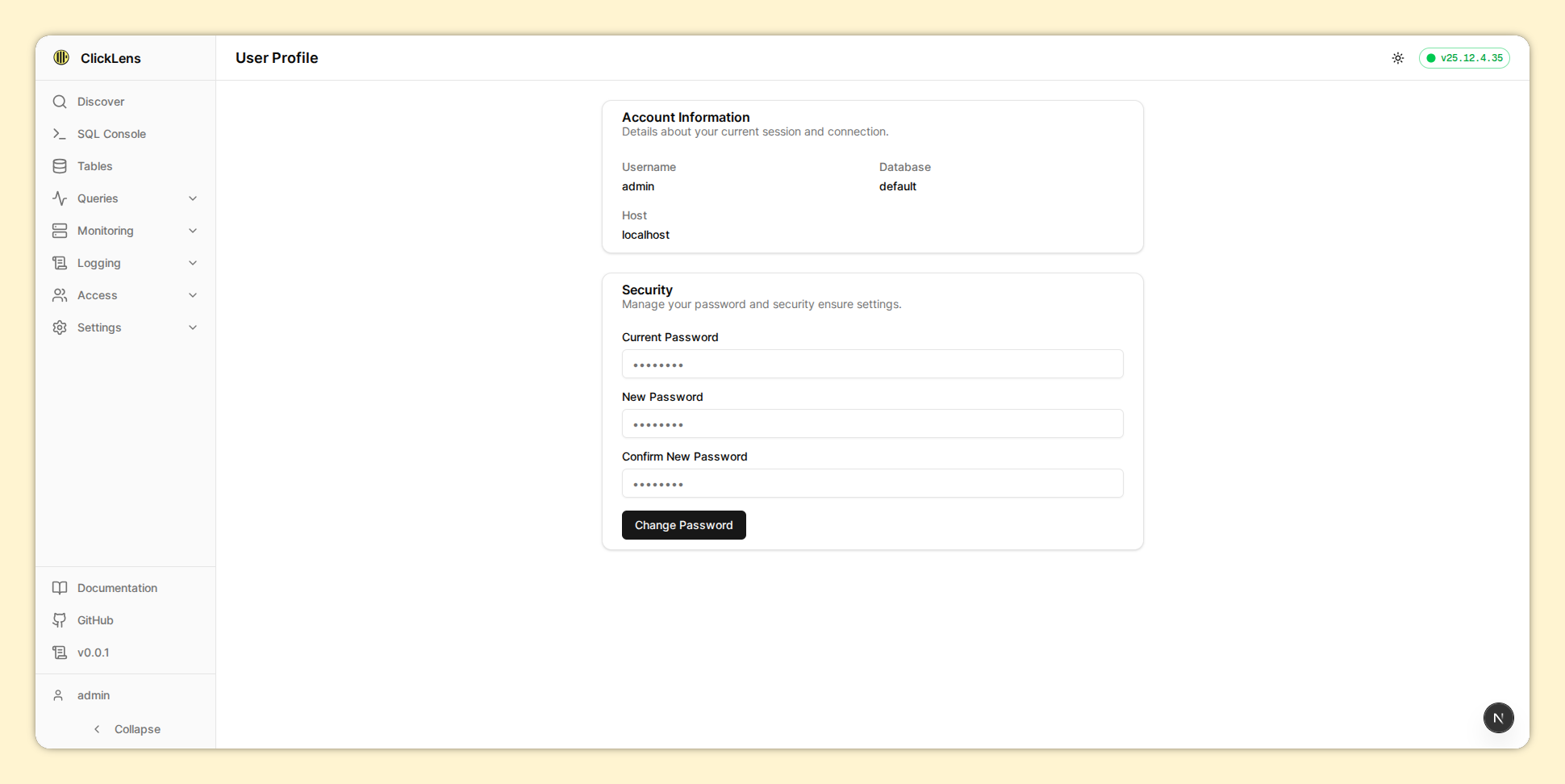
Profile
| User Profile |
|---|
 |